
Quick Answer: How Do I Convert a PDF to Audio for Free?
Converting a PDF to audio for free is simple: upload your PDF to a free text to speech tool that supports PDF input, pick a voice, and download the spoken audio as an MP3. The whole process takes a few minutes and costs nothing.
Free text to speech pdf to audio tools are useful for studying lecture notes hands-free, listening to ebooks and reports while commuting, or making long documents accessible if reading on screen is difficult. Below is a step-by-step guide, plus the free limits of the main tools that can do it — based on published plan details at time of writing.
1. How to Convert a PDF to Audio for Free (Step by Step)
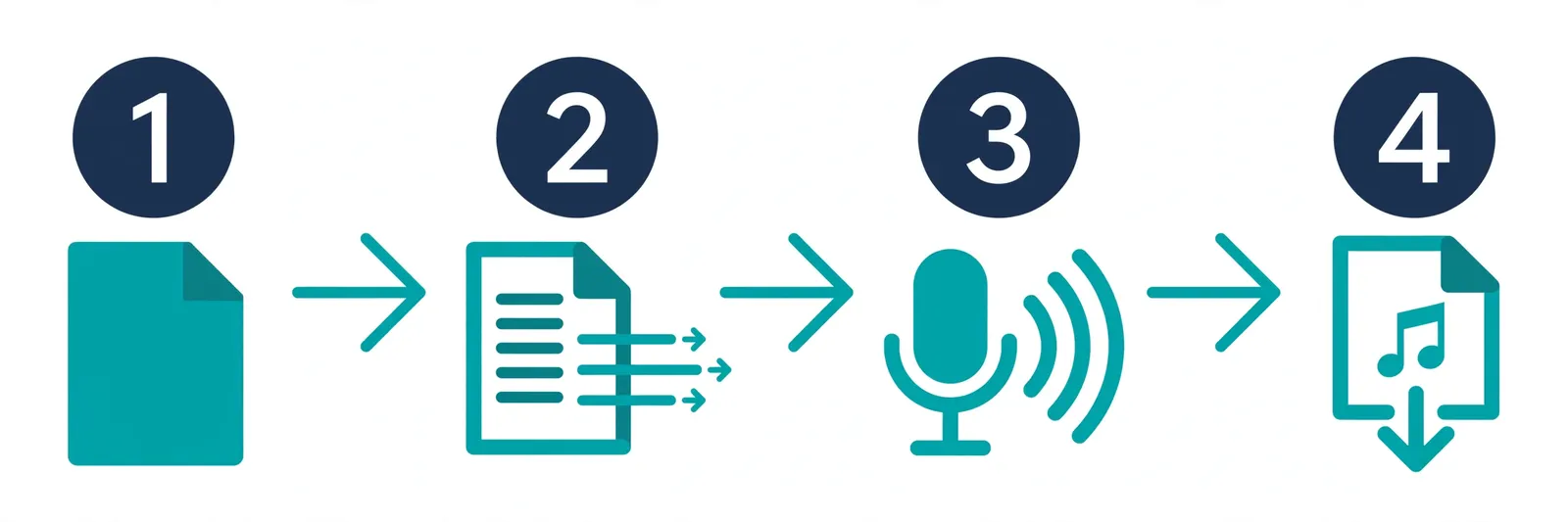
Step 1: Pick a free PDF-to-speech tool
Choose a tool that accepts PDF uploads directly. For this guide, texttospeechh's free PDF to Speech tool works well: it handles PDFs up to 10MB or 10,000 words per conversion, is 100% free, and lets you download the result as MP3 with no credit card required. Other options include TTSMaker (20,000 characters per week on the free plan) and NaturalReader (unlimited free voices plus 20 minutes of premium voices per day).
Step 2: Upload your PDF
Open the tool and upload your PDF file. If your PDF is a scanned image rather than selectable text, check the FAQ below — you may need an OCR step first.
Step 3: Choose a voice and language
Most free tools offer a range of voices. For long documents, a slower, neutral voice is easier to listen to for extended periods. If you need narration in another language, pick a tool that supports it — TTSMaker, for example, advertises 600+ voices across 100+ languages.
Step 4: Convert and preview
Click convert or play. Listen to the first minute to confirm the voice reads naturally and the text was extracted in the right order. Multi-column PDFs sometimes extract text out of sequence, so a quick preview saves time.
Step 5: Download the MP3
Download the audio file so you can listen offline on your phone, in the car, or anywhere else. texttospeechh and TTSMaker both offer free MP3 downloads on their free tiers; note that Adobe Acrobat Reader's built-in "Read Out Loud" feature only plays the text aloud and does not produce a downloadable audio file.
2. Free Tools That Convert PDF to Audio
texttospeechh PDF to Speech
The site's own PDF to Speech tool is built for exactly this task. At time of writing it supports PDFs up to 10MB / 10,000 words per conversion, is 100% free, requires no credit card, and exports MP3 audio.
TTSMaker
TTSMaker's free plan includes 20,000 characters per week with unlimited downloads, 600+ voices, and 100+ languages — and it does not require signup. According to its own site and reviewers, free output may be used commercially, including in YouTube videos, TikTok clips, and podcasts. The per-conversion character cap varies, so very long PDFs may need to be converted in sections.
NaturalReader
NaturalReader offers unlimited use of its free voices plus 20 minutes per day of premium voices (with an extra 5 minutes per day via its plus voices). It requires an internet connection to work.
TextaVoice (by PDFgear)
TextaVoice is a newer option launched in February 2026 by the makers of PDFgear. Its own press release claims it is free and unlimited, requires no signup, allows commercial use, and exports MP3. Treat these as the company's claims — they have not been independently verified at time of writing.
Adobe Acrobat Reader's Read Out Loud
If you already have Adobe Acrobat Reader installed, the free built-in "Read Out Loud" feature (found under View > Read Out Loud) can read a PDF aloud. It is convenient for a quick listen, but it does not create a downloadable audio file.
If PDF conversion is just one of your needs, see our guide to the best free text to speech tools for broader options, or AI voice generators with more realistic narration when voice quality matters more than free quotas.
3. Comparison Table
| Tool | Free limit (at time of writing) | PDF support | MP3 download | Signup needed |
|---|---|---|---|---|
| texttospeechh PDF to Speech | 100% free; up to 10MB / 10,000 words per conversion | Yes, direct PDF upload | Yes | No |
| TTSMaker | 20,000 characters/week, unlimited downloads | Yes | Yes | No |
| NaturalReader | Unlimited free voices + 20 min/day premium voices | Yes | Varies by plan | Varies |
| TextaVoice (PDFgear) | Claims free/unlimited (per its press release) | Yes | Yes (claimed) | No (claimed) |
| Adobe Acrobat Reader | Free Read Out Loud feature | Yes | No | No |
Based on published plan details at time of writing; limits can change, so check each tool's site before relying on them.
4. Tips for Better PDF-to-Audio Results
- Check the text layer first. If you can select and copy text from the PDF, it will convert cleanly. Scanned images need OCR first (see FAQ).
- Split very long documents. Large textbooks or reports convert more reliably in chapters or sections, and stay under free-plan limits.
- Remove clutter. Headers, footers, page numbers, and tables can sound awkward when read aloud. Cleaning the text first improves the listening experience.
- Pick the right voice for long sessions. A natural, medium-paced voice causes less fatigue over a 30–60 minute listen than a fast or heavily accented one.
- Use headphones for proof-listening. A quick skim of the first few minutes catches text-extraction problems, like columns read out of order.
Convert Your PDF to Audio Free
Have a PDF you want to listen to instead of read? Upload it to our free PDF to Speech tool — no signup, no credit card, MP3 download included.
Convert Your PDF to Audio Free →5. Read Along While You Listen: PDF Readers With Word Highlighting
Converting a PDF to audio solves the listening part — but many readers also want to follow along visually, with each word lighting up as it's spoken. This read-along style highlighting is a genuine accessibility win: dyslexic readers, students working through dense textbooks, and language learners all retain more when eyes and ears track together.
Free tools that combine PDF reading with live word highlighting:
- NaturalReader (free tier) — opens PDFs directly and highlights text as it reads aloud.
- Microsoft Edge Read Aloud — open the PDF in Edge and read aloud with on-page highlighting, no install needed.
- texttospeechh — Read-Along mode — extract your PDF's text, then hit the "Read-Along" toggle next to the player to watch each word highlight in sync. Off by default, so plain listening and MP3 downloads work exactly as before.
6. Frequently Asked Questions
Q1: Is it free to convert a PDF to audio?
Yes. Several tools do this for free, including texttospeechh's PDF to Speech tool (100% free, no credit card) and TTSMaker's free plan (20,000 characters per week). Free plans have limits on characters, minutes, or file size, but basic PDF-to-audio conversion costs nothing.
Q2: Are there file size or page limits?
Yes, most free tools cap the size of each conversion. texttospeechh supports PDFs up to 10MB or 10,000 words per conversion at time of writing. Other tools limit weekly characters (TTSMaker: 20,000 per week) or daily premium minutes (NaturalReader: 20 minutes per day). Very long documents may need to be split into parts.
Q3: What about scanned PDFs? Do I need OCR?
If your PDF is a scan — meaning the text can't be selected or copied — the tool has nothing to read. You'll need to run OCR (optical character recognition) on it first to turn the images into selectable text. Adobe Acrobat, free online OCR tools, and Google Drive's "Open with Google Docs" can all do this. Once the PDF has a text layer, any PDF-to-speech tool will work.
Q4: Can I download the audio as an MP3?
With most dedicated tools, yes. texttospeechh, TTSMaker, and TextaVoice all offer MP3 downloads on their free tiers at time of writing. One exception: Adobe Acrobat Reader's Read Out Loud feature only plays the document aloud — it cannot save audio to a file.
Q5: Can I use the audio commercially?
It depends on the tool's terms. TTSMaker's own site and reviewers say its free output may be used commercially, including on YouTube, TikTok, and podcasts. TextaVoice's press release also claims commercial use is allowed. Always check the current terms of whichever tool you use, since policies can change.
Q6: What's the best voice for long documents?
For long listening sessions, choose a clear, natural-sounding voice at a medium pace — it's less tiring over time. If your tool offers adjustable speed, start at normal speed and slow it slightly for dense material like textbooks or legal documents. Tools with many voices, such as TTSMaker (600+ voices) or the AI voice generators with more realistic narration covered in our other guide, give you more options to find one you like.
Q7: Do I need to install software or sign up?
No. Browser-based tools like texttospeechh's PDF to Speech and TTSMaker work without signup or installation — just upload the PDF and convert. Adobe Acrobat Reader's Read Out Loud requires the desktop app but no account.
For more options beyond PDF conversion, check our guide to the best free text to speech tools, or explore AI voice generators with more realistic narration for higher-quality voices.
Related Guides
Sources & References
- W3C Web Accessibility Initiative — "Audio Content & Video Content" text-to-speech guidance: www.w3.org/WAI/media/av/av-content/
- Wikipedia — Speech Synthesis & Speech Recognition: en.wikipedia.org/wiki/Speech_synthesis
- van den Oord et al. — WaveNet: A Generative Model for Raw Audio: arxiv.org/abs/1609.03499
- Shen et al. — Natural TTS Synthesis by Conditioning WaveNet on Mel Spectrogram Predictions (Tacotron 2): arxiv.org/abs/1712.05884
- Google — Neural Text-to-Speech & AI Overview documentation: cloud.google.com/text-to-speech