
Quick Answer: Can AI Narrate My E-Learning Course?
Can you narrate an e-learning course with AI text to speech? Yes — it's become a standard part of course production. A good elearning voice over needs clear diction, a steady conversational pace, and the same voice across every module. You can generate full course narration free with tools like TextToSpeechH (no sign-up, up to 10,000 words per request, MP3 download). Just check each tool's commercial-use terms 
1. Why course creators narrate with AI voices in 2026
Recording doesn't scale. A freelance narrator charges roughly $250–500 per finished hour of audio. Do it yourself and you're looking at 3–4 hours of recording and editing for every finished hour — plus the special pain of re-recording one lesson six months later and discovering your voice sounds nothing like it did.
Consistency is the real killer feature. Courses get updated. You swap out lesson 7, add a bonus module, fix a stat that's now wrong. With an AI voice, the new audio matches the old audio perfectly — same voice, same pace, same energy.
Multilingual versions stop being a fantasy. If your course sells, translating the script and generating Spanish or Hindi narration costs you an afternoon instead of a second production budget.
Students genuinely don't mind. I'll be honest about this one: students care about clarity, pacing, and whether the course teaches them something. A clean AI narration beats a tired human recording with room echo and inconsistent volume. The bar is "does this sound professional and can I understand it at 1.25x speed," not "is this a real person."
One candid caveat: not every course needs AI narration. If you're comfortable on camera and your face is part of your brand, record yourself. A nice hybrid many creators use is instructor-recorded intros with AI handling the long explanatory stretches in between.
2. What makes a good e-learning voice
Most people pick a voice that sounds "impressive" in a 10-second demo and then wonder why their course feels exhausting. Course narration has its own requirements:
Clarity over character. Students listen while commuting or half-asleep at 1.25x speed. The winning voice is the one that's still perfectly understandable at 1.5x. Test every voice at higher speeds before committing to it for 40 lessons.
A steady, conversational pace. The sweet spot is around 140–160 words per minute — slightly slower than natural conversation, with real pauses at section breaks. If the voice races through definitions, students rewind, get frustrated, and leave bad reviews.
The same voice in every module. Don't get cute with "variety" — no switching voices in module 3. Pick one voice, write down your exact settings (voice name, speed, pitch), and use them for the entire course. Your settings note is part of your production process now.
Warm and instructional, not dramatic. Skip the movie-trailer voice. You want the tone of a good teacher at a whiteboard: confident, unhurried, a little warm. Keep expressiveness in the middle, not cranked up.
Quick gut check before you generate a whole course: make 60 seconds of audio, listen at 1.25x, and ask, "Could I study to this for an hour?" If yes, you've found your voice.
3. The free workflow: script → voice → export for your LMS
Here's the process that actually works, end to end:
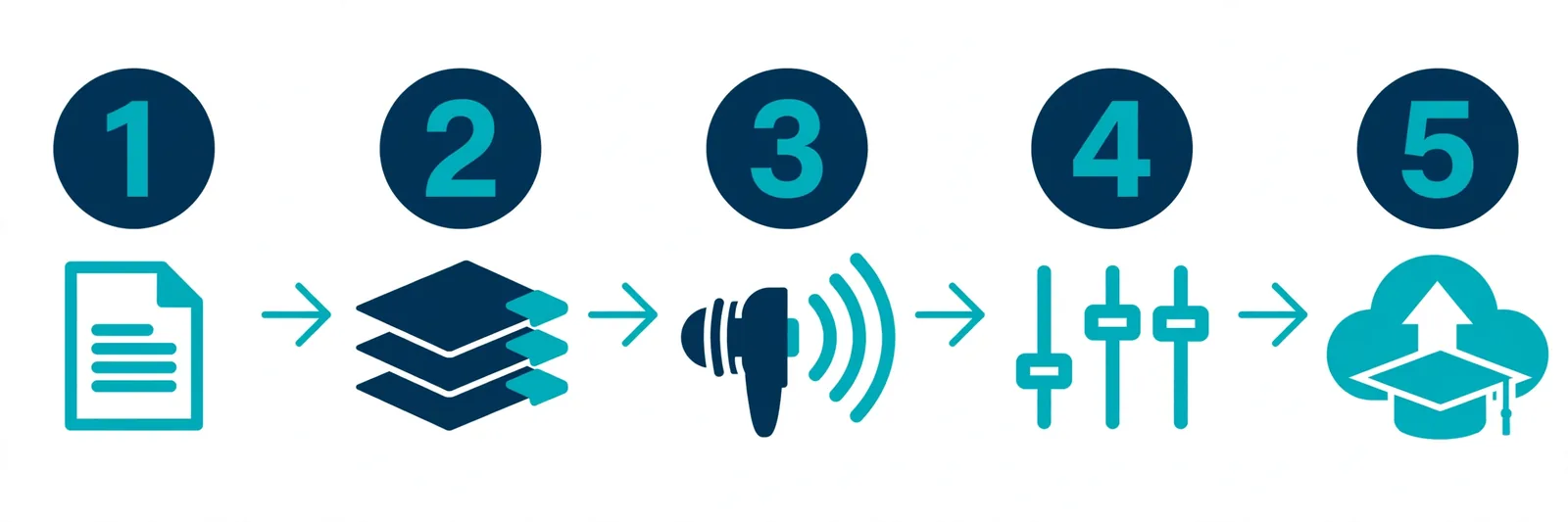
Step 1: Write for the ear, not the eye. Your lesson script is not an essay. Use short sentences, contractions, and spoken transitions ("So here's the thing…"). Write out anything a voice would stumble on: "e.g." becomes "for example," "$2.4M" becomes "2.4 million dollars." This one habit improves narration quality more than any tool upgrade.
Step 2: Chunk by lesson. One audio file per lesson, named sanely: module-01-lesson-02.mp3. Keep lessons in the 5–10 minute range — shorter lessons genuinely get better completion rates on Udemy and Teachable.
Step 3: Generate. This is where TextToSpeechH earns its spot: paste your script (up to 10,000 words per request, so most lessons fit in one go), pick your voice, nudge the speed slightly down if the default feels rushed, and download the MP3. No account, no credit card, no "your trial has 12 characters left" anxiety.
Step 4: Light cleanup. Trim the dead silence at the start and end of each file, and normalize volume so all lessons play at the same level. Free editors like Audacity handle this in minutes. Skip background music unless you're confident — badly mixed music under narration is worse than silence.
Step 5: Upload and sync. Drop the MP3s into your LMS alongside your slides or screencasts. Do a full playthrough of one module before batch-uploading the rest — it's much cheaper to catch a pacing problem in lesson 1 than in lesson 40.
Total cost of this workflow: zero dollars, plus the afternoon it takes to write good scripts. The script is the actual work. The voice generation is the easy part.
4. Best free TTS picks for course narration
TextToSpeechH — best free all-rounder. My honest first pick for course creators: no sign-up, up to 10,000 words per generation, direct MP3 download, 12+ languages, speed/pitch controls. The big deal for elearning voice over work is doing entire lessons in one pass and keeping the same voice across a whole course without hitting a paywall.
Microsoft Edge Read Aloud — best for proof-listening. Paste your script into Edge and listen before you finalize. Hearing it read aloud catches awkward phrasing your eyes skip over. No MP3 export, so it's a quality-check tool, not a production tool — but it's free and the voices are genuinely good.
TTSMaker — decent free tier for volume. Roughly 20,000 characters of free synthesis per week, no credit card, and the free tier includes commercial use. The weekly cap means a big course takes a few weeks of generation, so plan ahead.
ElevenLabs free tier — best voices, smallest allowance. The most natural-sounding voices in the business, but the free tier is tiny (around 10,000 characters a month). Realistic use: generate your intro and outro here for polish, and use a more generous tool for the bulk lessons.
Honest caveat on "free": a full course is a lot of characters. Four hours of narration is roughly 35,000–40,000 words — about 250,000 characters. No free tier covers that in one sitting. The realistic free strategy is chunking lessons across weeks (TTSMaker's weekly reset helps) or leaning on generous per-request limits like TextToSpeechH's.
5. Two mistakes to avoid
Mistake 1: The monotone lecture. Flat delivery plus long unbroken paragraphs is how students zone out by lesson 3. The fixes are all in the writing: conversational sentences, a rhetorical question now and then, clear signposts ("here's why this matters"), and lessons capped at 5–8 minutes. Use a voice with some expressiveness rather than the flattest "neutral" option — you're teaching, not reading terms and conditions.
Mistake 2: Ignoring the voice-license fine print. "Free to generate" doesn't automatically mean "free to sell in a course." Every tool has its own terms, and they change. Before you launch a paid course, read the current commercial-use terms of whatever tool you used — ten minutes now beats a takedown headache later. Tools that explicitly allow commercial use on their free tier are the safe choice for paid courses; anything ambiguous deserves a quick email to support first.
Narrate your first lesson free
You don't need a microphone, a voice actor budget, or a quiet room. Write one lesson script the way you'd explain it to a friend, paste it into TextToSpeechH's free voice generator, pick a voice, and download your MP3 — no sign-up, up to 10,000 words per request. Listen to it at 1.25x. If it sounds like a course you'd actually finish, you've got your workflow.
Frequently Asked Questions
Q1: What is an elearning voice over?
It's the narration track for an online course — the voice that walks students through lessons and ties slides or screencasts together. It used to mean hiring a voice actor or recording yourself; now most independent creators generate it with AI text to speech.
Q2: Can I use free TTS narration in a course I sell on Udemy?
Usually yes, with the right tool — but check the commercial-use terms first. Udemy also has its own audio quality standards: narration must be clean, intelligible, and free of distracting artifacts. A well-generated AI voiceover passes; a glitchy one doesn't.
Q3: How long should each narrated lesson be?
Aim for 5–10 minutes of audio per lesson. Shorter lessons get better completion rates on every major platform and are easier to update later. If a topic needs 20 minutes, split it into two or three lessons.
Q4: Will students be able to tell it's an AI voice?
Maybe, maybe not — modern voices are convincing. Honest take: it matters far less than creators think. Students judge narration on clarity and pacing, not origin. Just let the quality speak for itself.
Q5: What's the best speaking speed for e learning narration?
Around 140–160 words per minute, slightly slower than casual conversation. Always test at 1.25x playback — that's how a huge share of your students will actually listen.
Q6: Do I need background music under the narration?
No. It's optional, and for most courses I'd skip it. Music has to sit very low in the mix to avoid fighting the voice, and corporate training buyers generally prefer clean audio.
Related Guides
- AI Voiceover Guide for PowerPoint Presentations
- AI Audiobook Generator: Turn Any Book Into an Audiobook (Free)
- Free Text to Speech: PDF to Audio
- Text-to-Speech for Students & Teachers
- AI Voiceover Guide for YouTube Shorts
- TikTok Text to Speech: Free AI Voiceovers Guide
- AI Audiobook Narration: Turn Your Book Into Audio
Sources & References
- W3C Web Accessibility Initiative — "Audio Content & Video Content" text-to-speech guidance: www.w3.org/WAI/media/av/av-content/
- Wikipedia — Speech Synthesis & Speech Recognition: en.wikipedia.org/wiki/Speech_synthesis
- van den Oord et al. — WaveNet: A Generative Model for Raw Audio: arxiv.org/abs/1609.03499
- Shen et al. — Natural TTS Synthesis by Conditioning WaveNet on Mel Spectrogram Predictions (Tacotron 2): arxiv.org/abs/1712.05884
- Google — Neural Text-to-Speech & AI Overview documentation: cloud.google.com/text-to-speech