
Quick Answer: Can I Add Voiceover to PowerPoint for Free?
Yes, you can add AI voiceover to PowerPoint completely free. Generate the narration audio with a free text-to-speech tool, insert one MP3 per slide (Insert > Audio > Audio on My PC), set each clip to play automatically, and export the deck as a video if you want to share it. No microphone, no recording yourself, no paid add-on. The full walkthrough is below.

<a id="three-ways"></a>1. Three ways to narrate PowerPoint: record yourself vs built-in TTS vs AI voice
Three ways to get a voice onto your slides:
Record yourself inside PowerPoint. Go to Insert > Media > Audio > Record Audio and talk into your laptop mic. It's your voice, which is the appeal, but everything else works against you: you need a quiet room, you'll re-record slide 7 four times because you stumbled, and laptop mics make most people sound like they're presenting from inside a fish tank. Fine for a quick class assignment. For anything bigger, it's a time sink.
PowerPoint's built-in read-aloud. PowerPoint does have a Read Aloud feature (Review tab), but let's be honest about what it is: a proofreading helper that reads your slide text back to you so you can catch typos. It doesn't save or export narration. It doesn't solve this problem.
Generate AI voice audio and insert it. This is the method this guide covers. You write or paste your script into a free text-to-speech tool, pick a natural-sounding voice, download one MP3 per slide, and drop them into PowerPoint. You get consistent quality across every slide, you can fix a typo and regenerate just that slide in thirty seconds, and you never have to record anything. For teachers, students, and office workers on a deadline, this is the fastest honest route.
The vendor blogs (Fliki, Lovo, Murf) will tell you that you need their paid add-on to do this. You don't. Those tools exist, and I'll talk about when they're worth it later, but the free path below produces a narrated deck that sounds perfectly professional for most real-world use.
<a id="script"></a>2. Write your script from speaker notes (say what the slide means, don't read it)
The biggest mistake in narrated presentations is reading the slide out loud. If your slide says "Q3 revenue grew 18% year over year" and you say "Q3 revenue grew 18% year over year," your listener wonders why they're hearing the same sentence twice. Boring, and it makes the voiceover feel robotic no matter how good the voice is.
Instead, write your speaker notes the way you'd explain the slide to a person sitting next to you. The slide is the headline; your voice is the explanation.
Example. Your slide has three bullet points:
- Migrated to cloud hosting
- Page load time: 4.2s to 1.1s
- Support tickets down 30%
Your narration should sound something like this:
"In the spring we moved everything off our old servers and onto cloud hosting. It wasn't cheap, but look at the result: pages that took four seconds to load now take about one. And because the site stopped crashing during traffic spikes, our support tickets dropped by nearly a third."
That's roughly 60 words, takes about 25 seconds to speak, and tells the story behind the bullets instead of repeating them. Aim for 100 to 130 words per slide, which lands you around 40 to 60 seconds of audio. If a slide needs three minutes of talking, it probably needs to be two slides.
One practical tip: read your script out loud once before you generate the audio. If a sentence is hard for you to say, it'll sound hard coming from an AI voice too. Shorten it.
<a id="generate"></a>3. Generate the narration free (text to voice to MP3, one file per slide)
Here's the part that replaces the microphone. You want one audio file per slide, named clearly so you don't mix them up when inserting.
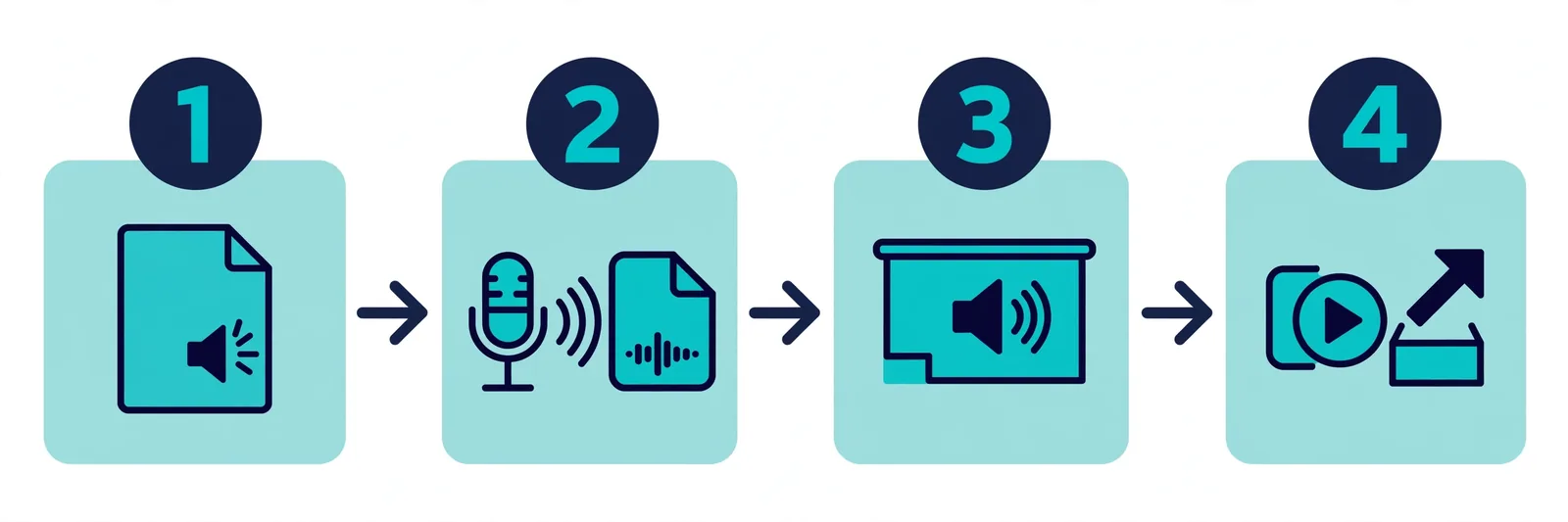
- Paste one slide's script into a free text-to-speech tool. TextToSpeechH's free generator works well for this: no sign-up, paste your text, pick a voice, download the MP3. It handles up to 10,000 words per request and the MP3 downloads directly.
- Pick the right voice for the room. For a classroom or office presentation, choose a clear, neutral voice at a moderate pace. Skip the dramatic movie-trailer voices; they sound strange narrating quarterly results. Preview a few voices with your actual first slide before committing to one for the whole deck.
- Generate and download, one file per slide. Name them in order: slide-01.mp3, slide-02.mp3, and so on. This sounds fussy, but when you're inserting audio into a 20-slide deck at midnight before a morning presentation, you'll be glad you did.
- Listen to each clip once. AI voices are good now, but they still misread the occasional abbreviation or number. "Q3" is fine; "FY2026/27" might come out weird. Fix the spelling in your script (write "fiscal year twenty twenty-six" if needed) and regenerate just that slide.
TextToSpeechH fits this workflow because it's genuinely free with no account and no watermark. The paid tools have their place (covered below), but for turning slide scripts into MP3s, the free tier is the whole job.
<a id="insert"></a>4. Insert audio into PowerPoint: timing, autoplay, export to video
The mechanical part. Straightforward once you've done one slide.
Insert the audio. Select slide 1, go to Insert > Media > Audio > Audio on My PC, and choose slide-01.mp3. A speaker icon appears on the slide. Repeat for each slide. (Yes, it's a little repetitive for long decks. Put on a podcast.)
Make it play automatically. Click the speaker icon, open the Playback tab, and change Start from "On Click" to "Automatically." Check "Hide During Show" so the icon doesn't sit on your slide during the presentation. Narration starts the moment the slide appears.
Set the slide timing. Your slides need to stay on screen long enough for the audio to finish. Note each clip's length, then go to Transitions and set "After" to a few seconds longer than the audio (a 45-second clip gets a 50-second transition). Rehearse Timings on the Slide Show tab works too, but the manual method gives you more control with less fiddling.
Check "Play Across Slides" is off. Each clip should belong to its own slide. If audio carries across slides, your timing will drift and slide 4 will start talking while slide 3 is still on screen. One clip, one slide, automatic start: that's the whole formula.
Export to video (optional but recommended). To share the deck, export it: File > Export > Create a Video. Choose presentation quality (1080p is the safe default), make sure "Use Recorded Timings and Narrations" is selected, and export. You get a single MP4 with slides, narration, and timings baked in — no missing audio files, no "the sound didn't work on my machine" emails.
One caveat: video export can take several minutes for a long deck. Start it, get coffee, come back.
<a id="free-vs-paid"></a>5. Free vs paid voice tools for presentations: when free is genuinely enough
Let's be straight about this, because the vendor blogs won't be. For most narrated slide decks, free is genuinely enough.
Free is enough when: it's a class lecture, a student project, an internal team update, a conference talk backup, or any one-off deck. Modern free TTS voices are natural enough that nobody in a classroom or meeting room will think twice about them. A bad script and bad timing make a narrated deck sound amateur, not the voice. A free tool plus the workflow above beats an expensive voice with a script that reads the bullets.
Paid starts making sense when: you're producing narrated decks at volume (an agency cranking out client decks weekly), you need many languages from one script, you want your own cloned voice narrating, or the deck is a commercial product someone is paying for. Tools like Murf, Fliki, and Lovo charge for exactly those things: voice libraries, collaboration, and scale. If none of those apply, you're paying for a logo on the invoice.
There's a middle path: use the free tool for the draft, and only pay if a specific project outgrows it. Almost nobody outgrows it for standard presentations.
Narrate your first deck today, free
Write the script the way you'd explain it, generate the audio free, drop one MP3 per slide, and export.
Try TextToSpeechH's free voice generator: paste up to 10,000 words, pick a voice, download your MP3. No sign-up, no watermark, no bill.
Frequently Asked Questions
Q1: Can PowerPoint generate voiceover automatically?
No. PowerPoint has no built-in AI narrator. You either record your own voice (Insert > Media > Audio > Record Audio) or generate audio with a text-to-speech tool and insert the files. The Read Aloud feature in the Review tab is for proofreading, not narration.
Q2: How do I make audio play automatically on each slide?
Click the speaker icon, open the Playback tab, and set Start to "Automatically." Check "Hide During Show" so the icon is invisible during the presentation.
Q3: Can I export a narrated PowerPoint as a video?
Yes. File > Export > Create a Video, choose your quality, make sure "Use Recorded Timings and Narrations" is selected, and export. The viewer doesn't need PowerPoint.
Q4: Will the audio work when I share the PowerPoint file?
Usually, yes. Modern PowerPoint embeds MP3 audio directly into the file, so it travels with the deck. Older versions linked to the audio file instead, which broke when the file moved — if you're unsure what version your recipient has, export to video instead.
Q5: Is free text-to-speech good enough for a professional presentation?
For classrooms, internal meetings, student work, and conference backups: yes, honestly. Current neural voices sound natural at presentation pace. What reads as unprofessional is almost always the script (reading bullets aloud) or the timing (audio cut off mid-sentence), not the voice itself.
Q6: How long should the narration be per slide?
Aim for 30 to 60 seconds per slide, roughly 100 to 130 words. If a slide needs more than about 90 seconds of talking, split it into two slides. Your audience will thank you.
Related Guides
Sources & References
- W3C Web Accessibility Initiative — "Audio Content & Video Content" text-to-speech guidance: www.w3.org/WAI/media/av/av-content/
- Wikipedia — Speech Synthesis & Speech Recognition: en.wikipedia.org/wiki/Speech_synthesis
- van den Oord et al. — WaveNet: A Generative Model for Raw Audio: arxiv.org/abs/1609.03499
- Shen et al. — Natural TTS Synthesis by Conditioning WaveNet on Mel Spectrogram Predictions (Tacotron 2): arxiv.org/abs/1712.05884
- Google — Neural Text-to-Speech & AI Overview documentation: cloud.google.com/text-to-speech