Quick Answer: Which PDF Reader Reads Out Loud?
The fastest free option: Microsoft Edge Read Aloud (built into Windows, open any PDF and right-click). For no-install browser reading, TextToSpeechH reads PDFs aloud free with MP3 download. On Android, @Voice Aloud Reader is the best free app. Scanned PDFs need OCR first — none of these can read image-only pages.
Some PDFs are meant to be read. Others — a 60-page research paper, a textbook chapter, a contract your eyes keep sliding off — are better listened to. A PDF reader that reads out loud turns any document into something you can absorb while walking, cooking, or resting your eyes.
The catch: most PDF apps either don't read aloud at all, or bury the feature behind a menu you've never opened. Below are the seven that actually do it well, which ones are genuinely free, and the one scanned-PDF gotcha that trips everyone up.
In a hurry? TextToSpeechH reads your PDF aloud right in the browser — drop in the file, pick a voice, listen or download the MP3. Free, no sign-up, no app to install.
Reading an Arabic PDF? Written Arabic skips vowel marks, so most free readers mispronounce it — our Arabic text to speech tools guide rounds up the 7 free options that handle Arabic script properly.
"Read aloud" vs. "convert to audio" — pick the right one
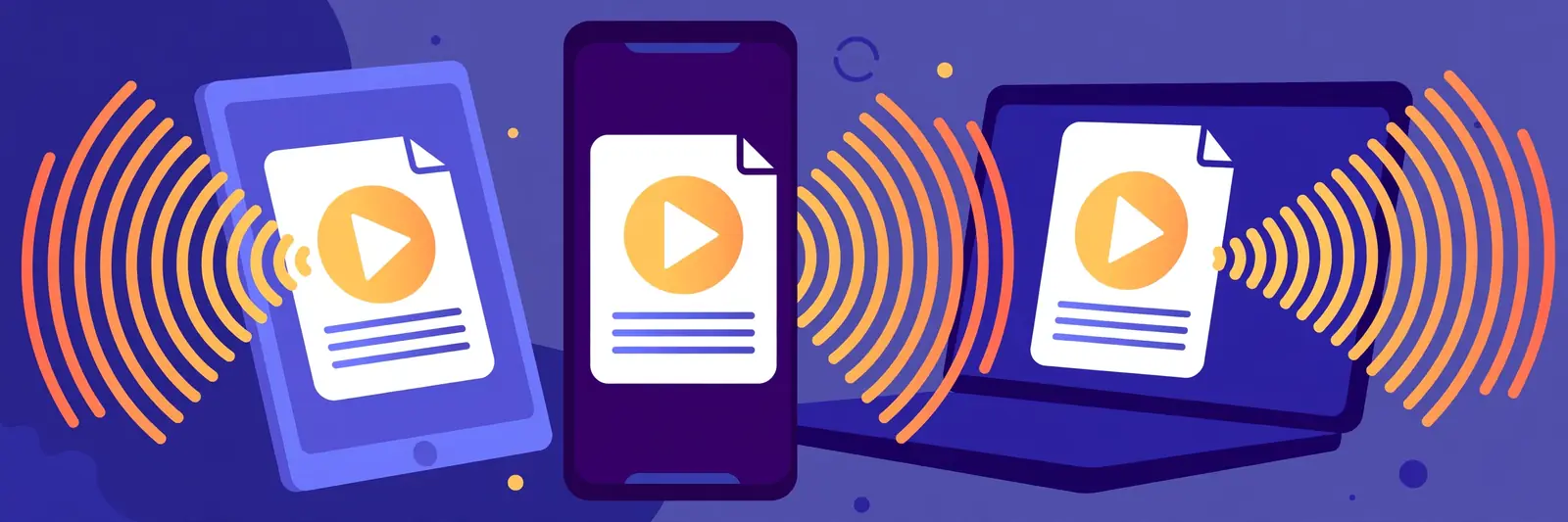
These are two different jobs, and picking the wrong one wastes an afternoon:
- Read-aloud apps (this guide) read the PDF to you right now — press play, listen, follow along. Best for study sessions, proofreading, and "I need to get through this document today."
- PDF-to-audio converters extract the text and hand you an MP3 file you keep. Best for building a listen-later library, podcast-style playback, or using the audio in a video.
If you want the MP3 file, not the live reading, our PDF-to-audio converter roundup covers the tools that export audio. Everything below is about pressing play.
The 7 best PDF readers that read out loud (2026)
1. TextToSpeechH — best no-install option
If you don't want to install anything or create an account, start here. Drop your PDF into TextToSpeechH, and it pulls the text out and reads it aloud with natural voices — or hands you an MP3 if you'd rather keep it.
It handles up to 10,000 words per session, which is roughly a full textbook chapter, and the MP3 comes out with a clean filename you can actually find later. Works on phone, tablet, and desktop because it's a website, not an app.
Best for: One-off documents and people who hate installing apps.
The honest caveat: It's browser-based, so your PDF is processed on a server — don't upload anything confidential. For private documents, a local app (see #3 and #4) keeps everything on your device.
2. Microsoft Edge Read Aloud — best built-in, already on your PC
Open the PDF in Microsoft Edge, right-click anywhere, and choose "Read Aloud." That's it. The neural voices are genuinely good — better than you'd expect from a browser feature — and it's completely free with nothing to install.
You get speed control and a choice of voices, and it works on any webpage or PDF you open in Edge. On Windows, this is the fastest path from "I have a PDF" to "it's reading to me."
Best for: Windows users who want zero friction.
The honest caveat: It's tied to Edge. If your workflow lives in Chrome or Acrobat, you're switching contexts to use it.
3. @Voice Aloud Reader — best free Android app
@Voice has been around since 2013, has over 10 million installs, and it's still the best genuinely free read-aloud app on Android. It reads PDFs, ebooks, articles, and web pages, works with your phone's built-in voices plus any TTS engine you've installed, and keeps playing with the screen locked.
The interface looks dated — it has the visual charm of an app designed in 2013, because it was. But it does the job: open a PDF, press play, adjust speed, done.
Best for: Android users who want a free, no-account reader that just works.
4. Voice Dream Reader — best voices on iOS (paid, worth knowing about)
Voice Dream Reader is the app accessibility professionals actually recommend. It opens PDFs, ebooks, and documents, reads with premium-quality voices, and syncs across iOS and Android. It's a one-time purchase (around $15 on iOS), not a subscription.
Why include a paid app in a free list? Because if you read PDFs aloud daily — students, researchers, anyone with a reading disability — the voice quality and navigation (jump by heading, bookmark by page) justify it, and it's cheaper than two months of any subscription reader.
Best for: Daily heavy readers who want the best experience, not the cheapest.
The honest caveat: It's paid. If you read aloud occasionally, the free options above are fine.
5. NaturalReader — best for students and study workflows
NaturalReader is built around studying: open a PDF, and it reads with clean highlighting so you can follow along visually. It handles textbooks well, has a dyslexia-friendly mode, and the free tier covers casual use.
The free version has daily limits on the premium voices, but the standard voices are unlimited. Students pairing listening with reading — which genuinely helps retention — will get the most out of it. Our students' TTS guide covers more study workflows.
Best for: Students turning textbooks and papers into study audio.
6. Adobe Acrobat Reader mobile — best if you already have it
The Acrobat Reader app on iOS and Android has a "Read Out Loud" option buried in the View menu. It's not the best reader on this list — the voices are your phone's system voices, and navigation is basic — but if Acrobat is already your PDF app, you don't need anything new.
Best for: People who live in Acrobat and want one less app.
The honest caveat: The feature is easy to miss and the voices are only as good as your phone's built-in ones.
7. ElevenReader — best neural voices on a free tier
ElevenReader gives you 10 hours of text-to-audio per month free, using ElevenLabs voices — the same engine behind some of the most natural AI speech available. Upload a PDF, pick from 1,000+ voices, and listen on web, iOS, or Android.
Ten hours covers roughly a 400-page book per month. If you exceed it, the paid tier is $8.25/month billed annually. For occasional long documents, the free tier is generous.
Best for: The most natural-sounding free read-aloud for long PDFs.
The honest caveat: Free-tier hours are shared across everything you read, so heavy daily use will hit the cap.
The scanned-PDF gotcha (read this before anything else)
If your PDF is a scan — photos of pages rather than actual text — none of these apps can read it, because there's no text to read. You'll press play and hear nothing, or gibberish.
The fix: run the scan through OCR first. Adobe Acrobat's "Scan & OCR" (paid), Google Drive (free: upload the PDF, open with Google Docs), or any free OCR tool will convert the images to real text. Then feed the result to any reader above. Check first: if you can select the text with your mouse, it's a real PDF and you're fine.

Three settings worth changing on day one
- Speed: start at 1.1x. Normal speed drags on dense documents; 1.1x sounds natural and saves real time on long papers. Push to 1.25x once you're used to it.
- Turn on highlighting. Every reader above that supports it, enable it. Following the highlighted line keeps your eyes engaged and massively improves comprehension versus pure listening.
- Set a sleep timer for bedtime reading. Most of these apps have one. Falling asleep mid-chapter without it means re-finding your place tomorrow.
Reading somewhere with no signal — a flight, a train, a long bus ride? A few of the readers above keep working offline once their voices are downloaded. Our guide to offline text to speech tools rounds up the ones that genuinely work with the Wi-Fi off — including the simple offline readers for PDFs and ebooks.
And if your text is not in a PDF at all — an article, an essay, or your own notes — our text reader roundup compares seven free tools that read any pasted text aloud, with their real free limits.
The bottom line: for live PDF reading, Edge Read Aloud is the fastest free start on Windows, @Voice owns Android, and TextToSpeechH needs no install at all. Run scans through OCR first, start at 1.1x speed, and turn on highlighting. Try it now — drop your PDF in and hear it read back in under a minute.
Frequently Asked Questions
Is there a free PDF reader that reads out loud?
Yes, several — and the best choice depends on your device. Microsoft Edge's Read Aloud is free and built into Windows, @Voice Aloud Reader is free on Android, and TextToSpeechH reads PDFs aloud free in your browser with no sign-up. Each has trade-offs in voice quality, highlighting, and offline use.
Can a PDF reader read a scanned PDF out loud?
Not directly — scanned pages are images, not text, so there is nothing for the reader to read. Run the scan through OCR first (Google Drive's 'Open with Google Docs' works free, and Acrobat has a paid Scan & OCR tool), then any reader on this list can read it aloud.
What's the difference between a read-aloud app and a PDF-to-audio converter?
Read-aloud apps play the document to you live — press play and listen now, usually with highlighting that follows along. Converters produce an MP3 file you keep and can use anywhere. For live listening, use this guide; when you need a file for a course, podcast, or video, see our PDF-to-audio converter roundup.
Can I read Kindle books out loud?
Kindle books have DRM that blocks most third-party apps. Your options: Kindle's built-in Assistive Reader (free, basic voice), iOS Speak Screen (free, reads the screen), or Speechify (paid, imports your Kindle library). Our Kindle read-aloud guide walks through all three.
Do these apps work offline?
It depends on where the voice lives. Apps that use your phone's built-in voices (@Voice, Acrobat mobile) work fully offline once installed. Browser tools and neural-voice apps (TextToSpeechH, ElevenReader, NaturalReader's premium voices) generate the audio online, so they need an internet connection for every new document.
How can I listen to a PDF on my phone for free?
On Android, @Voice Aloud Reader is the best free option, and the Acrobat Reader app you may already have hides a Read Out Loud option in its View menu. On iPhone, ElevenReader's free tier covers 10 hours a month. Or skip installs entirely — TextToSpeechH reads PDFs in your phone's browser.
Sources & References
- W3C Web Accessibility Initiative — "Audio Content & Video Content" text-to-speech guidance: www.w3.org/WAI/media/av/av-content/
- Wikipedia — Speech Synthesis & Speech Recognition: en.wikipedia.org/wiki/Speech_synthesis
- van den Oord et al. — WaveNet: A Generative Model for Raw Audio: arxiv.org/abs/1609.03499
- Shen et al. — Natural TTS Synthesis by Conditioning WaveNet on Mel Spectrogram Predictions (Tacotron 2): arxiv.org/abs/1712.05884
- Google — Neural Text-to-Speech & AI Overview documentation: cloud.google.com/text-to-speech