
Quick Answer: How Do I Convert Text to MP3 for Free?
Paste your text into TextToSpeechH, pick a voice, and download the MP3. It's free, there's no sign-up, and it takes up to 10,000 words at once — most free tools stop at a few hundred characters.
Plenty of tools will read your text out loud. Far fewer hand you an MP3 file you can keep — and that's the version most people actually need. An MP3 plays in your car, on a run, inside a video edit, or on a plane with no signal. A browser tab reading at you does none of that.
This guide walks through converting any text to MP3 for free: the exact steps, how to handle long documents without the file getting cut off, how to stop the voice sounding like a robot, and what to do when the download button everyone promises isn't there.
Why people want the MP3, not just the playback
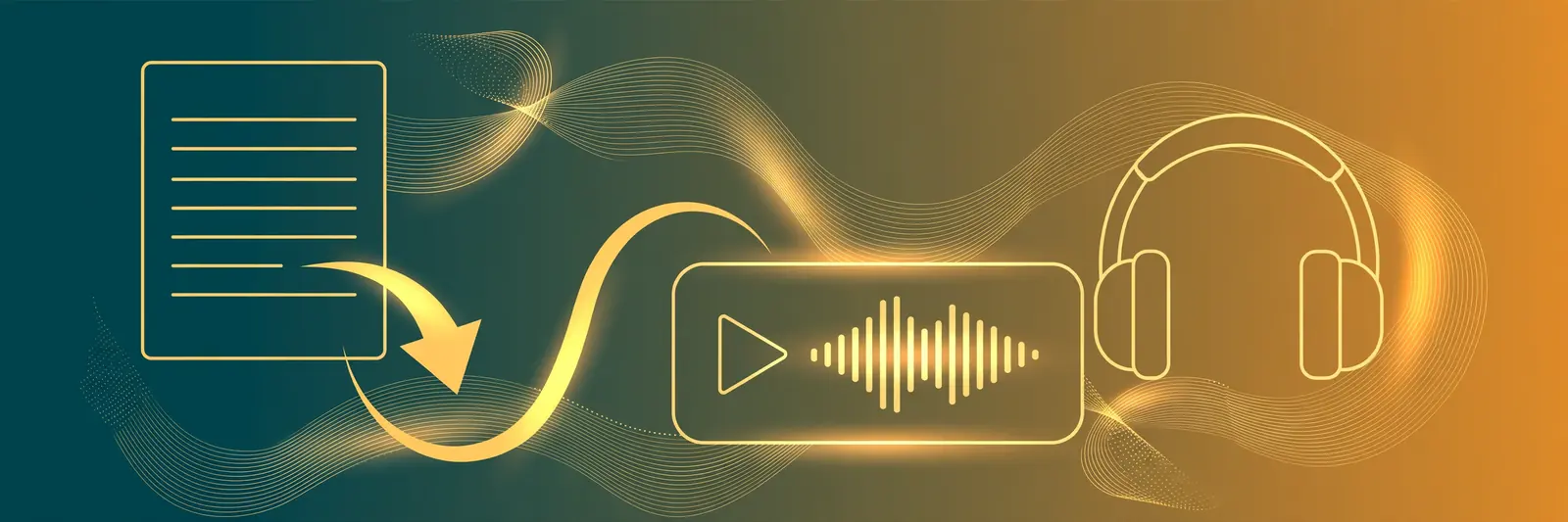
Reading aloud in the browser is fine for a quick check. The file is what makes it useful:
- Offline listening. Flights, commutes, gyms with bad signal — a downloaded MP3 doesn't care.
- Video and podcast work. Voiceovers have to be files. You can't drop a browser tab into your editor.
- Sharing. Send the audio to a client, a student, or your future self without sending a link and instructions.
- Keeping a library. Study notes, book chapters, articles you meant to read — a folder of MP3s becomes your own podcast feed.
How to convert text to MP3 (step by step)
- Get your text ready. Paste it, or upload a file — TextToSpeechH accepts TXT, DOCX, and PDF and pulls the text out for you. Quick cleanup pays off: remove page numbers, headers, and stray formatting, because the voice will read everything you leave in, including "Page 14 of 62."
- Pick the voice in the language your text is written in. This matters more than people expect. An English voice reading Spanish text sounds like a tourist with a phrasebook. Match the voice's language to the text.
- Preview a short chunk first. Generate 30 seconds, listen, adjust. Previewing two paragraphs now beats re-exporting a 40-minute file because the speed felt wrong.
- Set speed and pitch. Start at 1.0x speed and default pitch. If the voice drags, 1.1x usually fixes it without sounding rushed.
- Generate and download. The MP3 lands with a clean filename (ours looks like
texttospeechh-voice-20261021-093000.mp3), so your downloads folder stays findable instead of filling up with files calledaudio (3).mp3.
Long text: how to avoid the dreaded cut-off
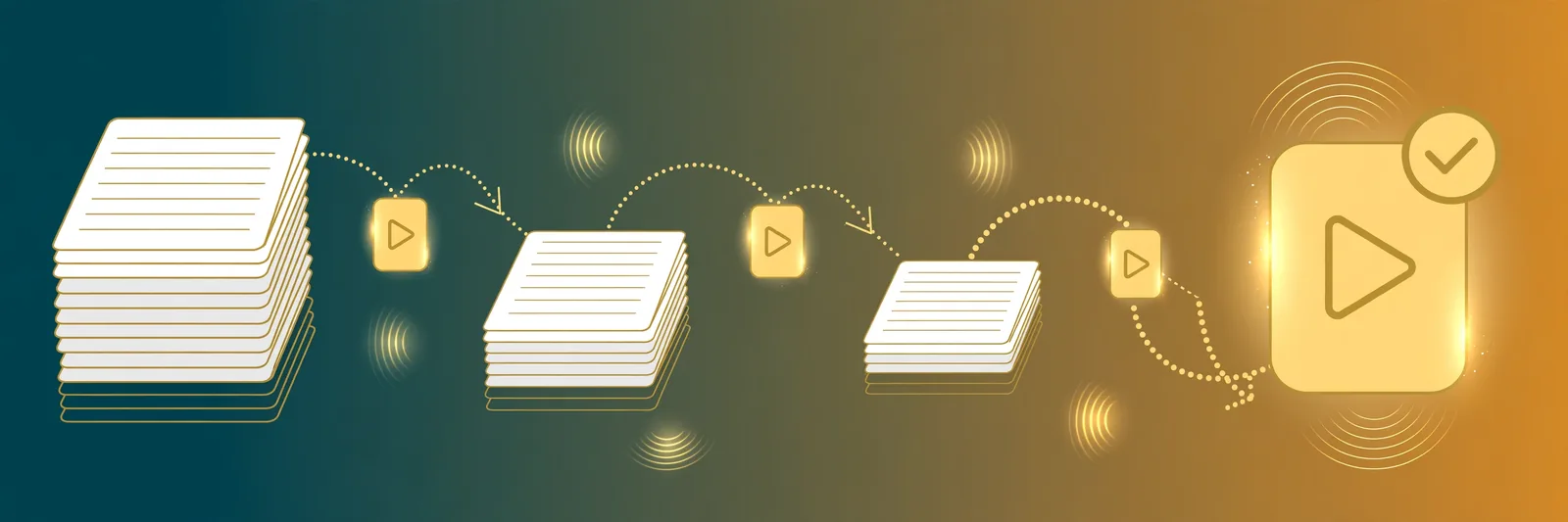
Most free converters cap you at 500–3,000 characters — about one page. Feed them a chapter and they'll quietly truncate it, or refuse.
The honest maths: 10,000 words is roughly 60–70 minutes of speech. That's the per-request limit on TextToSpeechH, and it's about one textbook chapter or a long article. For anything bigger, split the text at natural breaks — chapter headings, section ends, never mid-sentence — and export one MP3 per part.
Then name the files like you mean it:
02-chapter-one.mp3
03-chapter-two.mp3
Numbered names play in order on every player and car stereo. Unnumbered names play in whatever order the device feels like, and you will hear chapter three before chapter one on a road trip. Ask us how we know.
If you're converting a whole book rather than an article, our guide to making an audiobook for free covers the chapter workflow, consistency checks, and publishing end of it.
Make the MP3 sound human, not robotic
The voice engine does half the work. Your text does the other half:
- Punctuation is the steering wheel. Commas create short pauses, full stops create longer ones, and a wall of text with neither sounds breathless and flat. Write the pauses in.
- Write numbers the way you'd say them. "In 2026" is fine; "$1,250.50" makes some voices stumble. For anything important, spell it out: "one thousand two hundred fifty dollars."
- Expand abbreviations on first use. "Dr." can come out as "drive" or "doctor" depending on the engine's mood. When it matters, write the word.
- One voice per project. Switching voices mid-series sounds like a different narrator showed up. Pick one and stay with it.
- Listen at the speed your audience will. Creators often preview at 1.25x to save time, then ship a file that feels frantic at 1.0x. Check at normal speed.
MP3 quality, explained without the jargon
You'll see "bitrate" mentioned everywhere and explained nowhere. Here's all you need:
- For speech, 128 kbps is plenty. Voice isn't music — there's no detail to lose above that. Most listeners can't tell 128 from 320 in a blind test of spoken word.
- File size is predictable: at 128 kbps, budget roughly 1 MB per minute of audio. An hour-long chapter is about 55–60 MB.
- WAV is overkill for listening. It's an editing format — huge files, no audible benefit on playback. If a tool offers WAV, take it only when you'll edit the audio further.
- One honest caveat: if a free tool's voice itself sounds tinny, no export setting fixes it. Quality lives in the voice, not the file format. Preview before you commit.
"It only plays — there's no download button"
This is the most common trap in this category, so it's worth saying plainly: some free tools only stream the audio and never give you the file. The play button works, the voice sounds great, and there is no MP3 to keep. That's a deliberate funnel toward their paid plan.
Before pasting a long document into any tool, check for an actual download or export button with a two-sentence test conversion. Thirty seconds of checking saves you re-doing the whole job elsewhere.
A related trap: a "free" tool that watermarks the audio or inserts an announcement at the start. Fine for a test, embarrassing in a published video. Our own rule — and what you should expect — is a clean file with nothing added.
If you're comparing tools rather than following steps, our free text to audio converter roundup tests the main options side by side, including which ones quietly withhold the download.
Can you use the MP3 commercially?
It depends on the tool, not the format — there's nothing about "MP3" itself that restricts you. Each service sets its own terms for the voices it provides.
On TextToSpeechH, the answer is simple: the audio is free to use, including commercially — YouTube videos, podcasts, audiobooks, ads, client work — with no watermark and no attribution required. With any other tool, read the one paragraph of their terms about usage rights before you publish, especially on a free tier. Thirty seconds now beats a takedown later.
The bottom line: an MP3 you can keep beats a browser tab reading at you — it works in the car, in your video editor, and on a plane with no signal. Split long text at natural breaks, preview before you export, and always check for a real download button before pasting anything long. Try it now: convert your first text to MP3 — free, no sign-up, and the file is yours to keep.
Frequently Asked Questions
How do I convert text to MP3 for free?
Paste or upload your text into a converter like TextToSpeechH, choose a voice in your text's language, preview a short section, then generate and download. The whole thing takes under a minute for article-length text.
What is the longest text I can convert to MP3 at once?
On TextToSpeechH, 10,000 words per request — roughly an hour of audio. Most free tools cap out between 500 and 3,000 characters. For longer projects, split the text at chapter or section breaks and export one MP3 per part.
Why does my MP3 sound robotic?
Usually the text, not the voice: missing punctuation, dense abbreviations, and numbers written as symbols are the top three causes. Add commas and full stops, spell out important numbers, and preview a short chunk before exporting the whole file.
How big is an MP3 file from text to speech?
At the standard 128 kbps, about 1 MB per minute. A 10-minute voiceover is roughly 10 MB; an hour-long chapter is 55–60 MB.
MP3 or WAV — which should I download?
MP3 for listening, sharing, and publishing. WAV only if you'll edit the audio in a DAW and need the uncompressed source — the files are about ten times bigger with no audible benefit for playback.
Can I convert a PDF directly to MP3?
Yes — upload the PDF and the text is extracted automatically (TextToSpeechH accepts PDF, DOCX, and TXT). One exception: scanned PDFs are images, not text, so run those through OCR first. Our PDF to audio guide covers that path in detail.
Sources & References
- W3C Web Accessibility Initiative — "Audio Content & Video Content" text-to-speech guidance: www.w3.org/WAI/media/av/av-content/
- Wikipedia — Speech Synthesis & Speech Recognition: en.wikipedia.org/wiki/Speech_synthesis
- van den Oord et al. — WaveNet: A Generative Model for Raw Audio: arxiv.org/abs/1609.03499
- Shen et al. — Natural TTS Synthesis by Conditioning WaveNet on Mel Spectrogram Predictions (Tacotron 2): arxiv.org/abs/1712.05884
- Google — Neural Text-to-Speech & AI Overview documentation: cloud.google.com/text-to-speech