
Quick Answer: What Is a Robot Voice Generator?
A robot voice generator turns written text into speech that sounds mechanical on purpose: flatter pitch, a metallic edge, sometimes a slight electronic buzz. Some tools generate a robot character voice directly; most make normal speech first and then add robot effects. Both are free to try, and if you already have a clean text to speech clip, you can robotise it yourself in a free editor in about three minutes — the steps are below.
What a robot voice generator actually does
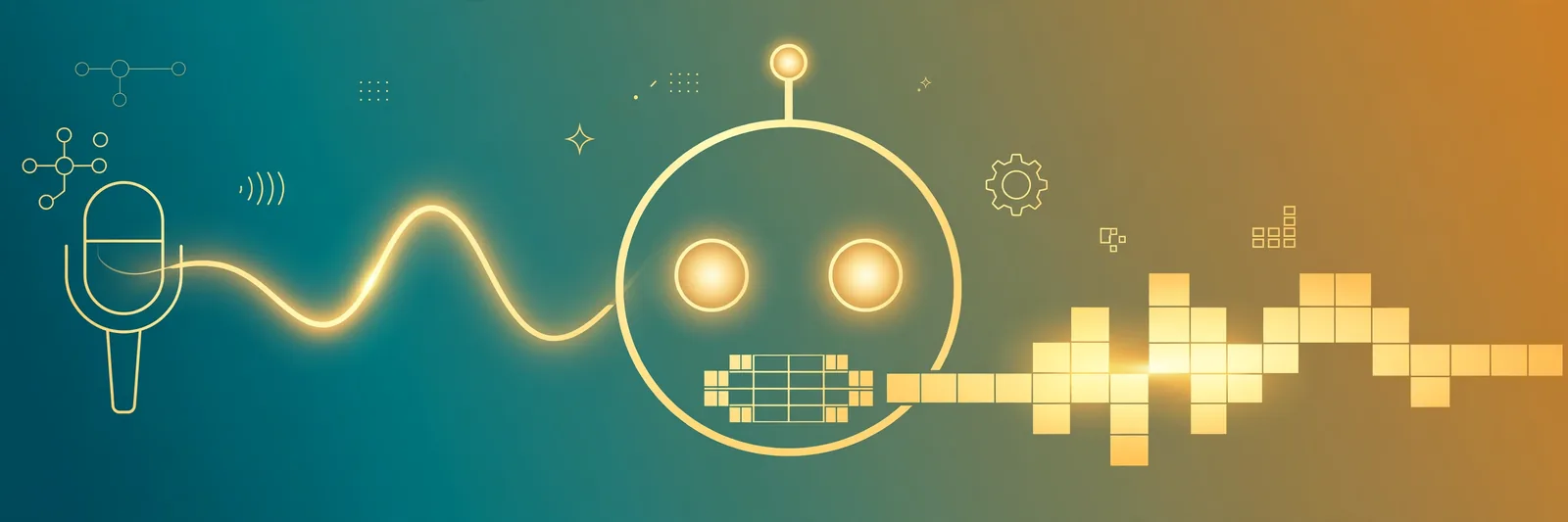
Under the hood there are two different approaches, and knowing which one you're using explains most of the quality difference you'll hear.
- Effect-based generators first make normal speech, then run it through audio effects — pitch shifting, a vocoder or ring modulation — to make it sound robotic. Most free online tools work this way, and the robot flavour is adjustable.
- Character voices are AI voices trained or directed to perform as a robot character from the start. These sound more like a movie droid and less like a processed human, but you get less control over exactly how robotic they are.
Neither one is "better" in general. Effect-based is what you want for quick clips, memes and alerts. Character voices are what you want when the robot has actual lines to deliver. And if what you really have is a recording of your own voice that needs changing, that is a different job again — our best AI voice changers guide covers that side honestly.
The fastest free routes (from the tools people already use)
The tools ranking for this today are all variations on the same idea, so pick by limits, not by logo:
- Musely — paste a script, pick from its robot presets (it lists 18, with pitch control and layered effects on its public page), export MP3. Built for exactly this job.
- Notevibes — has a dedicated robot voice page with demo clips on the page itself, so you can hear the voices before committing to a script.
- Fish Audio — community character voices, including several robot characters (a deep android enforcer type, an irritable service droid type). Good when you want a personality, not just an effect.
- Stilest — a simpler synthesizer page with pitch and speed sliders and preset robot styles (retro robot, deep android, vocoder cyborg).
An honest word on "free": every one of these has a free tier with limits — character caps, a handful of generations, or downloads behind an account. That is normal for voice tools and fine for short clips. For a long script, read the limit before you paste, not after.
The DIY method: make a robot voice from any text to speech
Here is the route the tool pages don't explain. If you already have a normal text to speech clip — including one made free with our text to speech tool — you can robotise it yourself in a free editor like Audacity or CapCut. The recipe is simple because a robot voice is mostly three ingredients:
- Flatten the pitch. Natural speech rises and falls. Robots barely do. In your editor, use the pitch or "vocal" controls to narrow that movement; a slightly lowered, steady pitch reads as mechanical instantly.
- Slow it a touch. Around 0.9x speed. Real machines in films enunciate; they don't gabble.
- Add a metallic effect, lightly. Vocoder, robot or cyborg presets in free editors do this in one click. The mistake everyone makes is maxing it out until the words turn to soup. Keep intelligibility first — if a listener can't repeat the line back, it's too much effect.
Worked example: generate the line in a clear voice, drop it into CapCut, apply the robot voice effect at a moderate setting, slow to 0.9x. Three minutes, no new account, no watermark. This is also the honest limitation of our own tool: TextToSpeechH makes natural voices, not robot presets. If you want a one-click robot, use a dedicated tool above. If you want full control and no limits, the DIY route on top of a clean TTS clip is genuinely the better deal.
Settings that separate a good robot voice from a bad one
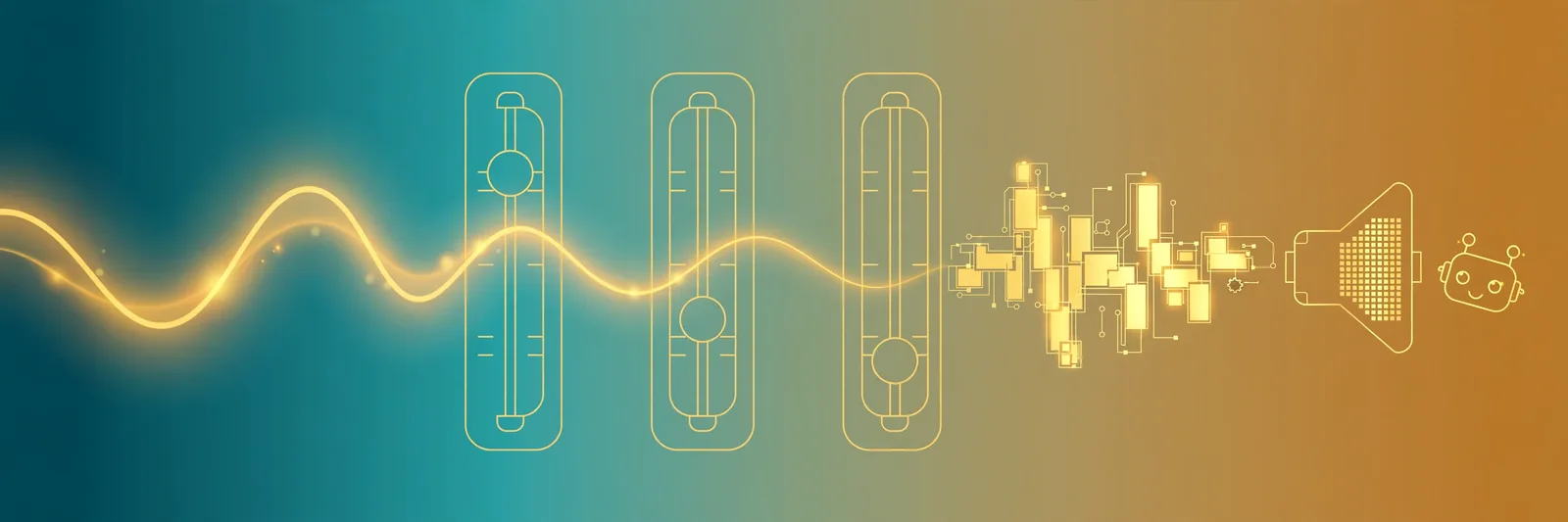
- Short lines win. Robot voices get tiring over paragraphs. Write in short sentences; let the pauses do the acting.
- Spell for the ear. Numbers, abbreviations and names get mangled. Write "sector seven" not "sector 7" if the tool stumbles, and test names out loud before the final render.
- Effect last, words first. Generate clean, then add robot flavour. If the base reading is wrong, no amount of vocoder will save it.
- Match the robot to the job. Deep and slow for an AI villain or game boss. Higher and flatter for a cute assistant droid. Deadpan monotone for comedy — the joke is that the robot doesn't know it's funny.
What people actually use robot voices for
- Videos and memes — narration for sci-fi edits, fake AI assistants, comedy skits.
- Games — NPC lines, boss intros, terminal and ship-computer announcements for indie projects.
- Stream alerts — donation and follower messages read in a robot voice (we cover the full setup in our Twitch text to speech guide).
- Pranks and messages — birthday greetings "from the robot", voicemail jokes, classroom and party announcements.
- Prototypes — placeholder voices for apps, toys and videos before a real voice actor is booked.
The short version: For a quick robot clip, a dedicated generator with presets is the fastest route, and its free tier is usually enough. For no limits and no watermark, generate a clean line with free text to speech and add the robot effect yourself — flat pitch, 0.9x speed, light metallic layer. And be clear about which tool does what: ours makes the natural voice, the effect makes the robot. Start with a free line here, then robotise it.
By Mauhnish — I build TextToSpeechH and write these guides from what actually works when you test it, not from feature lists. If a step above didn't work the way I described, the tool changed — tell me and I'll fix the guide.
Frequently Asked Questions
Is there a fully free robot voice generator with no limits?
Not honestly, no. Free tiers everywhere come with character or download limits. The genuinely unlimited route is the DIY one: free text to speech plus a free editor's robot effect, which has no watermark and no cap.
Can I use a robot voice in a monetised YouTube video?
Usually yes, but it depends on the tool's licence, not on the voice being robotic. Check the specific tool's commercial-use terms before you publish — several free tiers are personal-use only.
Why does my robot voice sound muffled?
Too much effect. The metallic layer is eating the consonants. Lower the effect strength, start from a clearer base voice, and slow the speed slightly — clarity comes back fast.
Can a robot voice read long scripts?
It can, but listeners tire quickly. For anything over a minute or two, use the robot for intros, alerts and character lines, and a natural voice for the main narration.
Does TextToSpeechH have a robot voice?
No — our voices are natural human-style voices, and we'd rather say that plainly than pretend otherwise. Generate your line here for free, then add the robot effect in a free editor using the steps in this guide; it takes about three minutes.
Sources & References
- W3C Web Accessibility Initiative — "Audio Content & Video Content" text-to-speech guidance: www.w3.org/WAI/media/av/av-content/
- Wikipedia — Speech Synthesis & Speech Recognition: en.wikipedia.org/wiki/Speech_synthesis
- van den Oord et al. — WaveNet: A Generative Model for Raw Audio: arxiv.org/abs/1609.03499
- Shen et al. — Natural TTS Synthesis by Conditioning WaveNet on Mel Spectrogram Predictions (Tacotron 2): arxiv.org/abs/1712.05884
- Google — Neural Text-to-Speech & AI Overview documentation: cloud.google.com/text-to-speech