
Quick Answer: How Does Twitch Text to Speech Work?
Twitch itself has no text to speech feature. Every robot voice you hear reading a donation message comes from a free third-party tool on top of Twitch: an alert service like Streamlabs or StreamElements for donations and bits, or a tool like Sound Alerts for channel points. Setup takes about ten minutes, and most of it is free.
First, the honest part: Twitch has no built-in TTS
If you've been digging through your Twitch dashboard looking for a text to speech switch, stop. It isn't there. Twitch itself doesn't read messages out loud. Every stream you've watched where a robot voice reads a donation message is using a third-party tool sitting on top of Twitch: an alert service like Streamlabs or StreamElements, or a channel points tool like Sound Alerts.
That's actually good news. It means you're not stuck with one robotic voice, you can set your own rules for what gets read, and most of the setup is free. This guide walks through the two setups that cover almost every stream: donation TTS and channel points TTS. Then we'll talk about the part most guides skip, which is choosing a voice that won't make your viewers mute the tab, and setting limits so one troll with a soundboard can't ruin your night.
The three ways a viewer's message gets read aloud
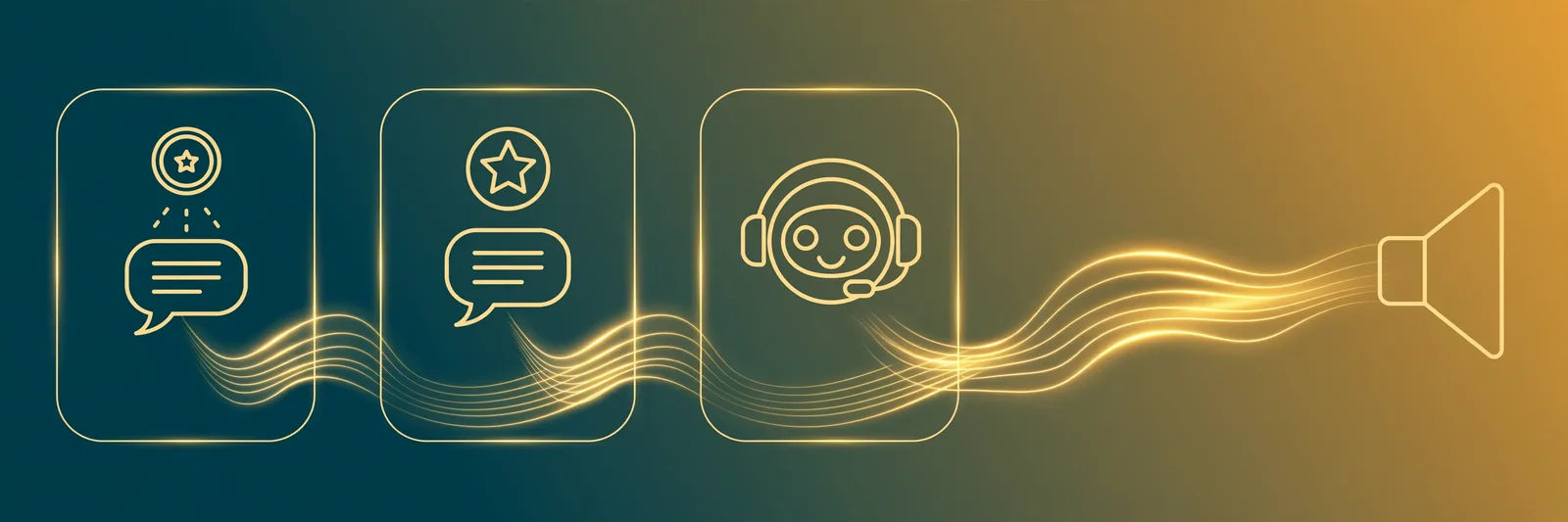
Almost every TTS moment on Twitch comes from one of these triggers:
- Donations and bits. A viewer donates through your alert provider or cheers with bits, adds a message, and the alert reads it on stream. This is the classic setup and it works for any streamer, affiliate or not.
- Channel points. A viewer redeems a reward ("Text to Speech, 1,000 points") and types a message that gets read out. This is the most popular engagement trick on Twitch right now, but it needs Affiliate or Partner status because channel points themselves do.
- Chat commands. Some bots will read messages from regulars or subscribers who type a command. Fun in small communities, chaos in big ones. Most streamers outgrow this one fast.
If you're brand new, start with donation TTS. Add channel points once you hit Affiliate. That's the order that keeps your stream fun instead of unmanageable. The same idea works on the other big chat platform too — our text to speech for Discord guide covers the server-side version, same pattern, different platform.
Setup 1: donation TTS with Streamlabs (free)
Streamlabs is the most common route, and the free tier is enough for TTS. Here's the whole thing:
- Go to streamlabs.com, log in, and connect your Twitch account.
- In the dashboard, open Alert Box.
- Click the Donations tab (repeat for Follows, Subscriptions, and Bits if you want those read too).
- Tick Enable Text to Speech.
- Set a minimum donation amount for TTS. Do not skip this. Something like $3 to $5 filters out most drive-by abuse, because trolls are cheap.
- Choose a voice and set the volume lower than your game audio. TTS should sit under your own voice, not fight it.
- Copy your Alert Box widget URL and add it as a Browser Source in OBS or Streamlabs Desktop.
- Send yourself a test donation from the Streamlabs dashboard and listen before you go live.
StreamElements does the same job if you already use it for overlays: enable TTS in the alert settings there instead. Pick whichever you're already running. Running both alert systems at once is how you get double alerts and a very confusing first week.
Setup 2: channel points TTS with Sound Alerts
Channel points TTS is where the real community fun is. Viewers save points just to hear their message read in a silly voice, and it costs them nothing but loyalty. Sound Alerts is the tool most streamers use for this:
- Go to soundalerts.com and log in with Twitch.
- Add the Sound Alerts browser source to OBS or Streamlabs using the URL from their setup page.
- In the dashboard sidebar, open Text-to-Speech and click Create TTS Reward.
- Set the price. Most streamers land between 500 and 2,000 points. Around 1,000 is a good start: cheap enough that people use it, expensive enough that it feels like a treat.
- Pick a voice, set a character limit (150 to 200 characters keeps messages snappy), and turn the profanity filter on.
- Test it with the built-in preview, then redeem it once yourself from a second account or your phone before announcing it to chat.
One honest caveat: if you're not Affiliate or Partner yet, you don't have channel points, so this whole setup has to wait. That's not the tool's fault, it's a Twitch rule. Donation TTS from Setup 1 works from day one, so start there and add this later.
Picking a voice your viewers can actually stand
Here's where most guides wave their hands. "Choose a voice from the library," they say, as if that's the end of it. It isn't, because the default TTS voices in alert tools range from charmingly retro to genuinely unbearable, and your viewers will hear this voice hundreds of times.
A few things that actually matter:
- Clarity beats novelty. A funny voice is great for one message. By the fiftieth, your regulars will beg for the plain one. Keep the joke voices for channel points and use a clear voice for donations.
- Test with real messages, not the sample line. Type the kind of thing your chat actually writes: usernames with numbers, game terms, emotes spelled out. Some voices read "PogChamp" like a news anchor and it's wonderful. Others mangle everything.
- Check the speed. Slightly faster than natural (around 1.1x) keeps long messages from stalling the stream.
The easiest way to audition voices is to test them outside your streaming software first. Paste a few typical chat messages into a free text to speech tool in your browser — a free text to speech tool with no sign-up is perfect for this, ours included — and listen to how different voices handle them. Five minutes of testing here saves you from changing voices mid-stream while chat riots. Our best free text to speech tools guide compares the options if you want to audition more than one. If you outgrow the free voices entirely, that's when paid AI voices enter the picture, and we'll be honest about that trade-off below.
The settings that keep trolls from wrecking your stream
Every streamer has a story about the TTS message that got read out at the worst possible moment. Almost all of those stories share the same cause: no limits set. Fix these five things on day one:
- Minimum amount or point cost. Free TTS gets abused. Paid TTS mostly doesn't.
- Profanity filter on, plus your own banned-words list for the slurs and spam phrases the filter misses. Add words as chat invents them.
- Character limit. 150 to 200 characters. Nobody needs a paragraph read aloud.
- Skip and stop controls where you can find them. In OBS, keep the alert source one click away so you or a mod can cut a message off mid-read. Some tools also offer a mod review queue. If your community is rowdy, the queue is worth the small delay.
- A cooldown. One TTS message at a time, with a short gap between them, stops the pile-ups during hype moments.
Set these once and TTS goes from a liability to the thing your viewers clip and share. Skip them and you'll be writing an apology post within the month. We've all seen it happen.
Free voices vs paid AI voices: the honest version
The free voices built into Streamlabs, StreamElements and Sound Alerts are fine. Genuinely. They're the classic robot voices half of Twitch grew up with, and chat often loves them precisely because they sound a bit ridiculous.
Paid AI voices (from tools like Murf or ElevenLabs, usually routed through a separate service) sound far more natural, and some streamers build a whole character around one. The catches are real, though: they cost a monthly fee or per-character credits, they add setup steps between your alert and the voice, and natural isn't always better for comedy. A deadpan robot reading an absurd message is funny in a way a smooth AI narrator just isn't.
Our take: start free. If your stream grows and viewers start asking for a specific voice, or you're turning TTS clips into Shorts and TikToks and want them to sound polished, that's when paying starts to make sense. Not before. Our TikTok text to speech guide covers turning those clips into short videos when you get there.
The short version: Twitch won't read your chat's messages for you, but ten minutes with Streamlabs gets donation TTS running for free, and Sound Alerts adds channel points TTS once you're Affiliate. Spend as long choosing the voice and the limits as you do on the setup itself. Your viewers will thank you, mostly by not leaving. Try the voices free now — audition your chat's worst messages before you go live.
By Mauhnish — I build TextToSpeechH and write these guides from what actually works when you test it, not from feature lists. If a step above didn't work the way I described, the tool changed — tell me and I'll fix the guide.
Frequently Asked Questions
Can viewers use TTS on any channel?
Only where the streamer has set it up. As a viewer you can't force it. Look for a channel points reward under the chat box, or check whether donations and bits carry a message field.
Do I need to be Affiliate for Twitch TTS?
Only for channel points TTS. Donation and bits TTS through Streamlabs or StreamElements works on any account.
Why is my TTS not playing on stream?
Nine times out of ten it's the browser source: either the Alert Box widget isn't in your current OBS scene, or the audio is being captured by a source your stream can't hear. Run the test alert, check the OBS audio mixer moves when it plays, and confirm TTS is enabled on the specific alert type (donations vs follows are separate toggles).
Can I use TTS voices in my clips and Shorts?
The alert voices are fine inside your own stream recordings. If you're generating voiceovers separately for edited videos, check the terms of the tool you used, and remember Twitch's own rules still apply to what gets said, whoever or whatever says it.
Sources & References
- W3C Web Accessibility Initiative — "Audio Content & Video Content" text-to-speech guidance: www.w3.org/WAI/media/av/av-content/
- Wikipedia — Speech Synthesis & Speech Recognition: en.wikipedia.org/wiki/Speech_synthesis
- van den Oord et al. — WaveNet: A Generative Model for Raw Audio: arxiv.org/abs/1609.03499
- Shen et al. — Natural TTS Synthesis by Conditioning WaveNet on Mel Spectrogram Predictions (Tacotron 2): arxiv.org/abs/1712.05884
- Google — Neural Text-to-Speech & AI Overview documentation: cloud.google.com/text-to-speech