
The best free speech to text tool is Google Docs Voice Typing, free, unlimited, no install, and it handles punctuation commands well. If you need to transcribe a recording instead of dictating live, use a free Whisper-based tool. For short notes, the built-in dictation on your device, Windows Win+H, Apple Dictation, or Gboard, is fastest.
That split matters. Dictation listens while you speak and types as you go. Transcription takes a recording you already have and turns it into text afterwards. Most lists blur the two, so people download the wrong thing. This guide keeps them separate. For the reverse direction, turning written text into audio, see how text to speech works.
Quick Answer — Which Free Speech to Text Tool Should You Pick?
> Quick Answer: Start with Google Docs Voice Typing if you write on a computer. It costs nothing, needs no install beyond a browser and a Google account, and it gets punctuation right when you say "comma" or "full stop." Pick a Whisper-based tool for a recording. Pick Windows Voice Typing, Apple Dictation, or Gboard for a quick note.
Short version by job:
- Writing documents: Google Docs Voice Typing
- Quick notes on Windows: Windows Voice Typing (Win+H)
- Quick notes on Mac, iPhone, or iPad: Apple Dictation
- Anything on Android: Gboard Voice Typing
- Recordings of meetings, lectures, or interviews: a Whisper-based tool, or Otter.ai free tier
- Dictating inside Word: Microsoft Word Dictate, if you already have Word
The 7 Best Free Speech to Text Tools (Tested)
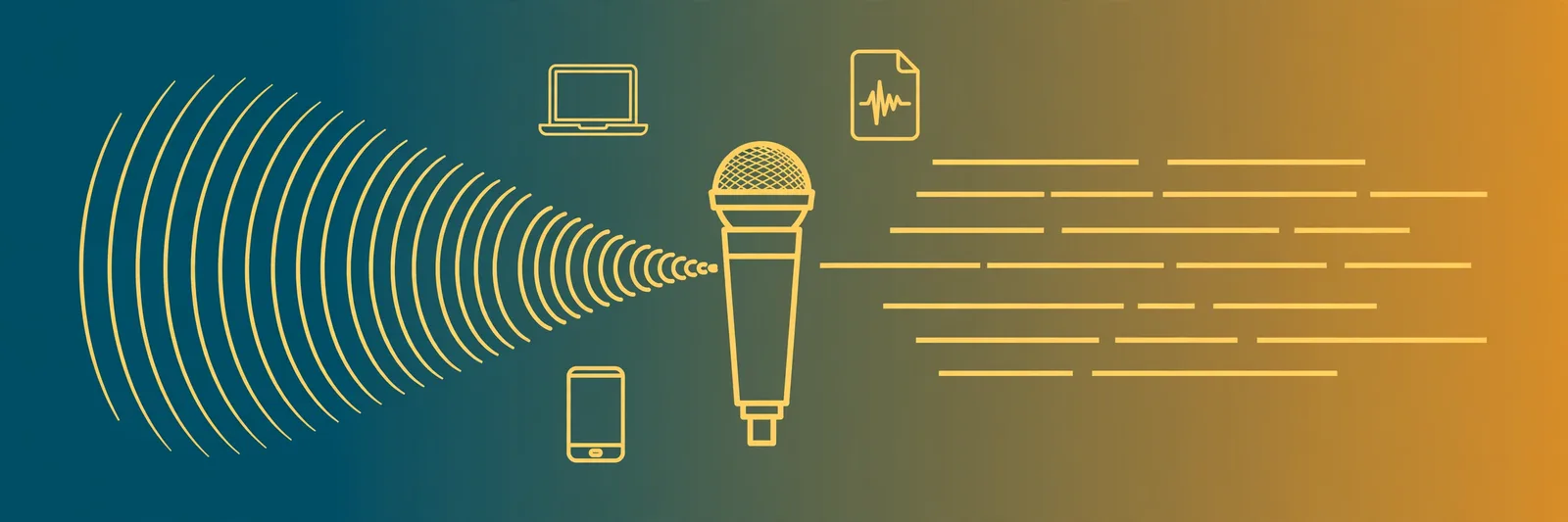
Start with this table, then read the section for your situation.
| Tool | Best for | Works with | Free limit | Offline? |
|---|---|---|---|---|
| Google Docs Voice Typing | Dictating documents | Chrome or Edge, Google account | Free, no monthly minute cap in normal use | No |
| Windows Voice Typing | Notes and dictation on Windows | Windows 11, updated Windows 10 | Free, built in | Limited |
| Apple Dictation | Dictation on Apple devices | Mac, iPhone, iPad | Free, built in | Yes on many newer devices |
| Gboard Voice Typing | Dictation on Android, in any app | Android with Gboard | Free, built into keyboard | On some phones, with language packs |
| Whisper-based tools | Transcribing recordings | Web tools or desktop apps | Free model; limits depend on host or your computer | Yes, if run locally |
| Microsoft Word Dictate | Dictation inside Word | Word and Word on the web | Included where you already have Word; check your plan | Mostly no |
| Otter.ai | Meetings with speaker labels | Web, iOS, Android | Free tier available; minutes and features limited, check current plan | No |
Notice the pattern. Dictation built into your device or browser is genuinely free for everyday writing. Transcription is where limits appear, because processing long audio costs the provider real computing time. When a site promises unlimited free transcription, a file or monthly limit usually sits in the small print.
Best for Dictation on Any Computer: Google Docs Voice Typing
If you only try one tool here, make it this one. Open a Google Doc in Chrome, click Tools, then Voice typing, click the microphone, and talk. Your words appear as you speak. Say "comma," "full stop," or "new paragraph" and it does exactly that. That punctuation control is why it beats most free rivals, and you can draft a full article without touching the keyboard for long stretches.
Students get the most from it: talk through a first draft when a blank page feels stuck, then edit with the keyboard. If you revise better by listening, pair it with text to speech for students: dictate in Docs, then have your notes read back.
The caveats are simple. You need internet, a Google account, and Chrome or Edge for best support. It is dictation only, so you cannot upload an MP3 of a lecture. Your audio goes to Google’s servers, so do not dictate anything highly sensitive here.
Best Built Into Windows & Mac: Win+H Voice Typing vs Apple Dictation
You already own both if you own the device, so try them before installing anything.
Windows Voice Typing: click into any text field, press Win+H, and a microphone bar appears. It types wherever your cursor is: Word, Notepad, your browser, an email box. That "works anywhere" part is its real strength. Turn on automatic punctuation in settings so you do not say every comma. It needs internet for most languages.
Apple Dictation: on a Mac, turn it on in Settings under Keyboard, then use the Dictation key in any app. On iPhone or iPad, tap the microphone on the keyboard. It handles short bursts and full paragraphs well, and on many newer devices it works offline once you download your language, a real edge for private notes.
Choosing between them is not really a choice. Use the one built into the computer in front of you. Both handle notes, messages, and first drafts well, and both struggle with proper names, fast accented speech, and noisy rooms.
Best on Your Phone: Gboard Voice Typing
On Android, Gboard is the dictation tool most people should use, mostly because it is already there. Tap the microphone above the keys in any app and talk. WhatsApp, Gmail, Notes, a search box: it works in all of them because it lives in the keyboard itself.
If it is not on yet, open Gboard settings, go to Voice typing, and turn it on. Download your language for offline use if offered, because that pack saves you when your data drops.
What it does badly is long recordings. It is not a transcription tool, so do not record a one-hour meeting through it: it can time out or lose chunks once background voices creep in. One tip: speak your punctuation for anything longer than a sentence. It feels odd for a day, then it becomes automatic.
Best for Transcribing Recordings Free: Whisper-Based Tools
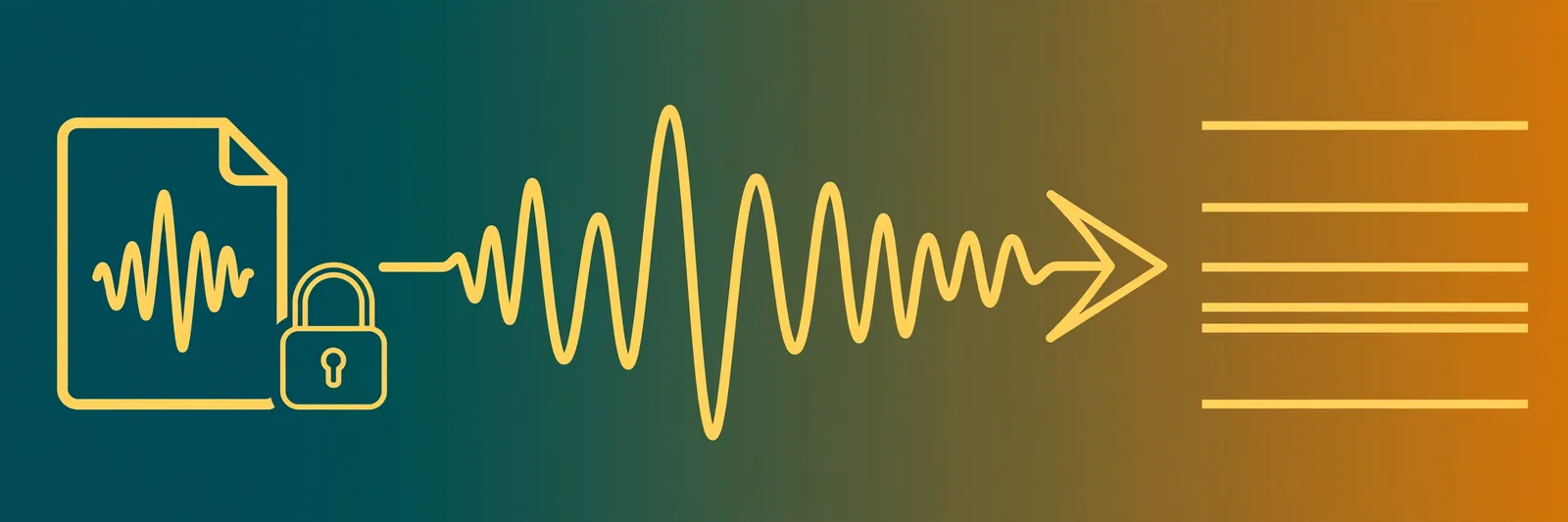
Read this section if you have audio files: a lecture, an interview, a podcast episode. Dictation tools cannot help here. You need a tool that accepts a file, and the best free route in 2026 is a tool built on Whisper, OpenAI’s open-source model.
The background explains why. OpenAI trained Whisper on 680,000 hours of multilingual audio (OpenAI announcement, 21 Sep 2022). That scale is why free tools built on it cope with accents and noise that break older transcribers. Whisper transcribes 99 languages and translates into English (OpenAI), so a recording in another language can come out as English text.
You will meet Whisper in two main forms. Free web tools run it in your browser or on their server: upload a file, wait, download the text. They are easiest, but check file limits first and remember your audio leaves your computer. Free desktop apps run it on your own machine: slower on an old laptop, but nothing gets uploaded and there is no monthly cap.
Accuracy is strong on clear recordings. Speaker labels and timestamps depend on the tool wrapped around the model, not on Whisper alone. If you need neat "Speaker 1 / Speaker 2" labels, Otter.ai’s free tier is built for that. A plain Whisper tool may give clean text with no labels. For very long files, splitting the audio into shorter parts helps.
Free vs Paid: Where the Free Tools Stop Working
Free speech to text is genuinely good now. For notes, drafts, and study work, you may never need to pay. But free stops in predictable places.
Names and jargon. Every free tool stumbles on unusual names and medical, legal, or technical terms. Paid tools let you add a custom vocabulary so key terms come out right first time. If fixing the same words costs more time than dictating saved, that alone can be worth paying for.
Long recordings and labels. Free transcription tiers limit file length or monthly minutes, and tidy speaker labels, searchable archives, and team sharing are usually paid. One lecture a week is fine free. Daily meetings will push you out of free quickly.
Privacy. Most free dictation sends your voice to a server, including Google Docs Voice Typing. If a recording holds private, legal, medical, or client information, use Apple Dictation offline where supported, or a local Whisper tool, so the audio stays with you. Our offline text to speech free tools guide covers the same mindset in reverse.
Support. Free built-ins have no one to call when a language pack breaks before a deadline.
Stay free until one of those walls hits you twice, then pay for that specific wall. For the opposite job, reading text aloud, our best free text to speech tools roundup shows what free should look like first.
Need the other direction, turning text into speech? Try TextToSpeechH free in your browser, no sign-up, and download the MP3 to keep.
By Mauhnish — I build TextToSpeechH and write these guides from what actually works when you test it, not from feature lists.
Frequently Asked Questions
Is there really free unlimited speech to text?
Yes, for live dictation. Google Docs Voice Typing, Windows Voice Typing, Apple Dictation, and Gboard are free with no monthly minute cap in normal use, as long as you have the device or a Google account. Transcribing uploaded recordings is different. Free Whisper tools and free tiers usually limit file length, file size, or monthly minutes.
What is the best free speech to text app for Android?
Gboard is the best free pick for most Android users. It is already on many phones, works inside almost any app, and handles punctuation and multiple languages well. Turn it on in your keyboard settings, tap the microphone, and dictate. If Gboard is not available, your phone maker’s own keyboard dictation is the closest free alternative.
Can speech to text work offline for free?
Yes, but your options narrow. Apple Dictation can work offline on many newer devices after you download the language, and local Whisper tools run entirely on your computer with no upload. Google Docs Voice Typing and Gboard usually need an internet connection, though Gboard offers offline language packs on some Android phones in settings.
How accurate is free speech to text vs paid tools?
For clear speech in a quiet room, free tools are surprisingly close to paid ones, and most mistakes come from names, accents, background noise, or mumbling, not the price tag. Paid tools earn their money on speaker labels, timestamps, custom vocabulary, and support for long files. For everyday notes and drafts, free is usually enough to start.
Sources & References
- W3C Web Accessibility Initiative — "Audio Content & Video Content" text-to-speech guidance: www.w3.org/WAI/media/av/av-content/
- Wikipedia — Speech Synthesis & Speech Recognition: en.wikipedia.org/wiki/Speech_synthesis
- van den Oord et al. — WaveNet: A Generative Model for Raw Audio: arxiv.org/abs/1609.03499
- Shen et al. — Natural TTS Synthesis by Conditioning WaveNet on Mel Spectrogram Predictions (Tacotron 2): arxiv.org/abs/1712.05884
- Google — Neural Text-to-Speech & AI Overview documentation: cloud.google.com/text-to-speech