
Quick Answer: What Does AudioShake Studio Do?
AudioShake Studio takes a mixed audio file and splits it into separate stems: dialogue, music, vocals, and instruments. I tested it myself with real clips. Dialogue isolation was excellent, with zero music leaking into the voice stem. Music stems came out clean too. Two-speaker separation failed twice, and credit costs need watching. The full honest results are below.
What AudioShake Studio actually does
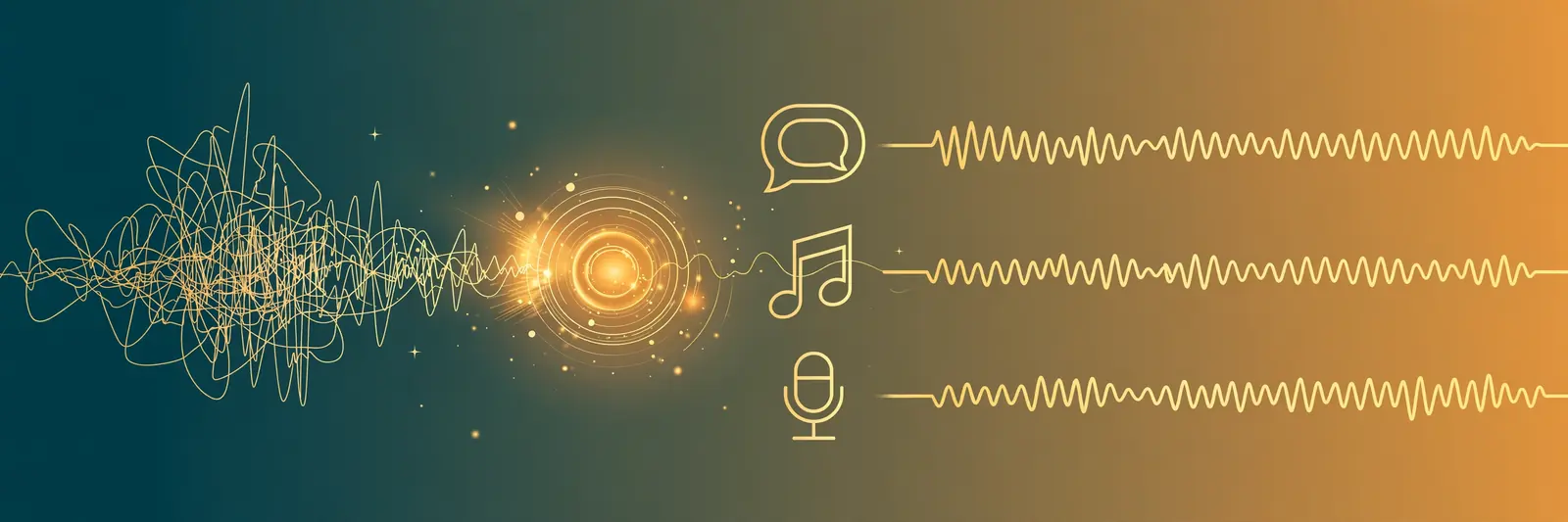
Most creator audio problems are separation problems. You have a voice-over sitting on top of background music. You have a song and you want just the vocals. You have an interview with two people talking over each other and you want each voice on its own track.
AudioShake Studio is built for exactly that job. You upload a mixed audio file, and its AI splits it into stems: dialogue, music, vocals, instruments, and in the multi-speaker workflow, separate speaker tracks. You download the stems and edit them like any other audio in your video editor or DAW.
That is the whole pitch. The question is how well it holds up on real clips, not demo files. I tested it myself, and this guide reports what actually happened, the good parts and the failures.
Honest note: AudioShake gave me test credits to try Studio. What follows is what I found with those credits, including the tests that did not work. Nobody told me what to write.
The workflow, step by step
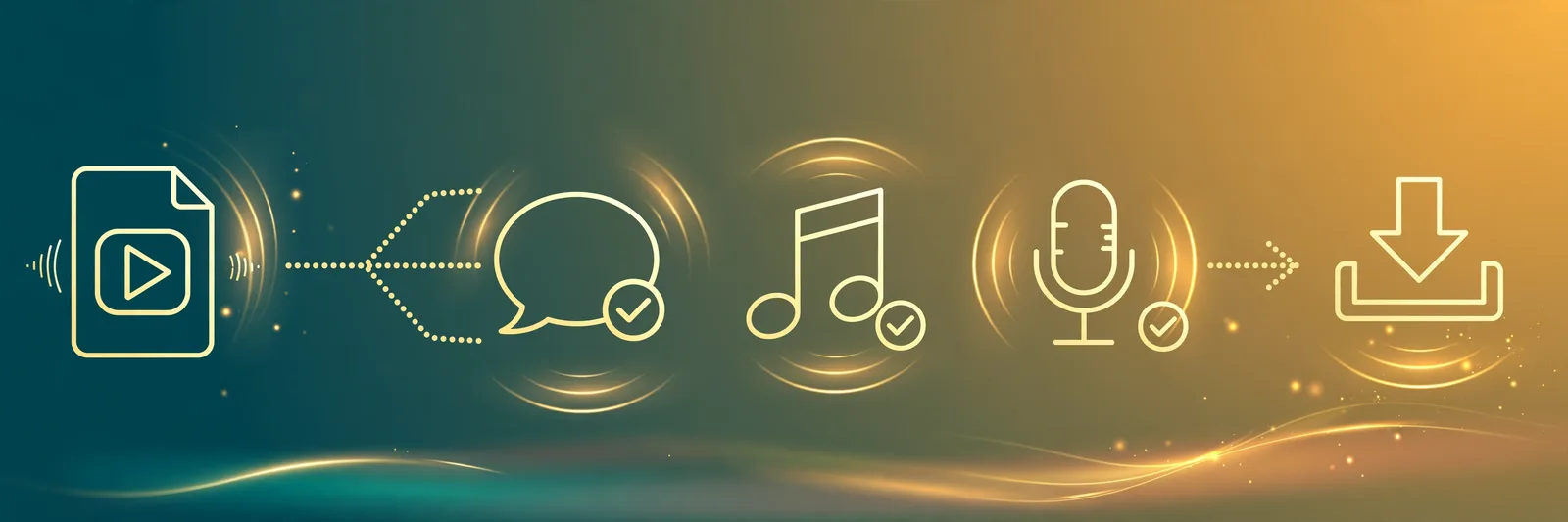
For a creator, the process is short:
- Upload your mixed audio or video file to AudioShake Studio.
- Pick the separation job: dialogue isolation, music stems, or the multi-speaker workflow.
- Let it process. Short clips take a few minutes; long files take longer.
- Preview each stem before you download anything. This is the step people skip, and it is the step that saves credits.
- Download the stems you actually need and drop them into your editor: CapCut, Premiere, DaVinci, Audacity, whatever you already use.
One habit matters more than any other: test a short clip first. I ran my first test on a 25-second voice-over with background music before touching anything longer. That one short test told me more than any feature page could, and it cost a fraction of a full-length job.
What worked brilliantly: dialogue isolation
This was the standout. I ran a 25-second voice-over with background music through the multi-speaker workflow, and the dialogue came out isolated cleanly into its own speaker stem, with zero music leaking into it.
That matters more than it sounds. A voice-over with music bleed is almost impossible to fix in an editor: turn the voice up and the music comes with it; turn the music down and the voice goes muddy. A clean dialogue stem means you can rebalance the whole mix afterwards, voice up, music down, or music replaced entirely, without re-recording anything.
For YouTubers, podcasters, and anyone dubbing or revoicing video, this is the feature that earns its keep. If your audio problem is "my voice is stuck to my music," this is the tool for it.
What also worked: music stems
The music stems test separated vocals from instruments cleanly. A full song went in, and the vocal track and the instrumental track came out usable on their own.
Practical uses for creators: karaoke-style backing tracks, remixes, pulling a vocal out of a track to talk over it, or rescuing a song where one element is too loud. Same rule as above applies: preview before you download, and test short before you go long.
What did not work: two-speaker separation
Here is the honest part. I tested separating two speakers from a single recording, and it failed, twice. Two attempts, no usable result either time.
That does not mean the feature never works. It means that on my test material, with two voices in one file, it did not deliver what a creator could actually edit with. If your project depends on splitting two speakers, do not buy credits for the whole job first. Run one short test on your exact audio, listen to both stems, and only continue if they hold up. A feature that works on clean demo audio and fails on your real recording is the most expensive kind of surprise.
Credits, billing, and the free plan limits
Three things to know before you spend:
- Test short, then commit. Every separation costs credits. A 25-second test tells you whether the job works at all, before a long file eats your balance.
- Watch the billing. In my testing, the credit charges looked roughly twice what I expected on some jobs. I am not calling it a billing error: different jobs price differently, and long or complex files cost more. But check your balance before and after a job, and do not assume the price from one test applies to the next.
- Free plan exports MP3 only. If your workflow needs WAV, that sits on a paid tier. For most video and podcast work MP3 stems are fine, but if you master audio professionally, check the format before you start.
Who this is for, and who should skip it
Good fit if: you make videos or podcasts, you have voice stuck to music, you need clean vocals or instrumentals, or you revoice and remix existing audio.
Think twice if: your whole project depends on two-speaker separation (test it first, on your audio), or you need WAV stems on a free plan.
Pairing it with text to speech
One workflow creators ask about: generate a voice-over with text to speech, then clean and mix it with other audio. That is a natural pair. You can generate the narration on TextToSpeechH, lay it over music, and use a tool like AudioShake when you need to pull elements apart again, for example, separating an existing mixed track so your new narration sits cleanly on top. Our text to speech for YouTube guide covers the voice-over side of that setup, and the how-to-make-an-audiobook-free guide covers long-form narration.
The short version: AudioShake Studio is genuinely strong at the job most creators actually need: pulling clean dialogue out of mixed audio, and splitting music into usable vocals and instruments. Its two-speaker separation did not work in my tests, and credit costs need watching. Test a short clip first, preview every stem, and you will know within minutes whether it solves your problem.
Last tested: October 2026. If AudioShake updates the two-speaker workflow, I will re-test and update this guide.
By Mauhnish — I build TextToSpeechH and write these guides from what actually works when you test it, not from feature lists. AudioShake provided test credits; the findings, including the failures, are my own.
Frequently Asked Questions
Is AudioShake Studio free?
There is a free starter allowance, and paid credits beyond that. The free plan exports MP3 only; WAV needs a paid tier.
Can it separate two people talking at once?
It offers a multi-speaker workflow, but my two-speaker test failed twice on my material. Test a short clip of your own audio before committing credits to a long file.
How clean is the dialogue isolation?
On my test, a voice-over with background music, the dialogue came out clean with zero music leakage. That was the strongest result in my testing.
What file do I get back?
Separate stems you can download and edit in any video editor or audio editor. Preview each stem before downloading.
Does it replace a recording session?
No. It rescues and rebalances audio you already have. If you can re-record cleanly, re-recording is still better. Separation is for the audio you cannot re-record.
Sources & References
- W3C Web Accessibility Initiative — "Audio Content & Video Content" text-to-speech guidance: www.w3.org/WAI/media/av/av-content/
- Wikipedia — Speech Synthesis & Speech Recognition: en.wikipedia.org/wiki/Speech_synthesis
- van den Oord et al. — WaveNet: A Generative Model for Raw Audio: arxiv.org/abs/1609.03499
- Shen et al. — Natural TTS Synthesis by Conditioning WaveNet on Mel Spectrogram Predictions (Tacotron 2): arxiv.org/abs/1712.05884
- Google — Neural Text-to-Speech & AI Overview documentation: cloud.google.com/text-to-speech