
Quick Answer: How Do I Turn Text Into Speech Online?
Paste your text into an online text to speech tool, pick a voice, press play — and download the MP3. No download, no install, no sign-up needed with the right tool. TextToSpeechH handles up to 10,000 words per session free, right in your browser.
You don't need to download anything to turn text into spoken audio anymore. An online text to speech tool runs right in your browser: paste your text (or drop in a file), pick a voice, press play — and download the MP3 if you want to keep it.
Below is how to do it step by step, what to look for so you don't waste time on bad tools, and the one trade-off online TTS makes that nobody mentions.
In a hurry? TextToSpeechH converts up to 10,000 words per session into natural-sounding audio in your browser — no download, no sign-up, MP3 download, free for commercial use.
How online text to speech works (the 30-second version)
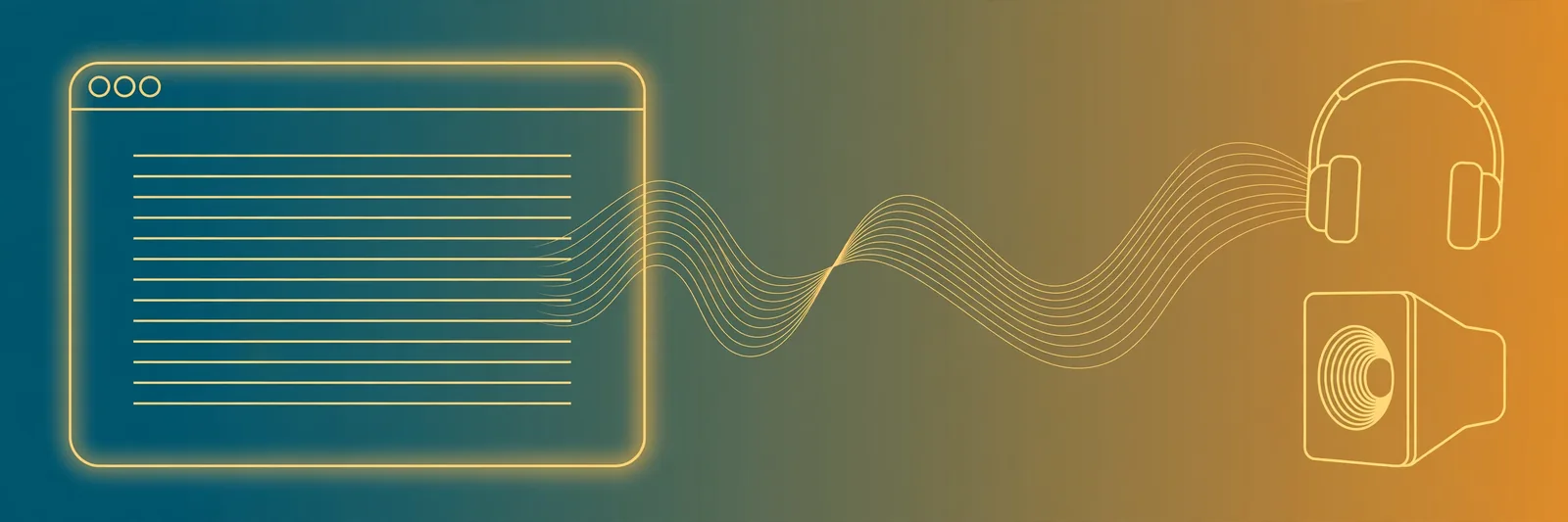
- Paste your text — or upload a TXT, DOCX, or PDF file and let the tool pull the text out.
- Pick a voice and language — good tools let you preview each voice before committing.
- Adjust speed and pitch — 0.9x sounds more natural for narration; 1.2x works for study notes you want to skim through your ears.
- Generate and download — hit play to listen, or download the MP3 and drop it into your video, podcast, or presentation.
That's the whole workflow. If a tool asks you to install something or create an account before you've heard a single word, that's a red flag, not a feature.
What actually separates the good tools from the thin ones
The free TTS pages ranking on Google right now are mostly bare-bones: a textarea, a robot voice, and a FAQ page written for search engines. Judge a tool on these instead:
- Character limits that matter. A 400-character cap is a paragraph. A 2,000-character cap is one section of an article. If you're narrating a full video script or an ebook, you want thousands of words per session, not hundreds of characters.
- Real MP3 download. Plenty of free tools will play audio but won't give you the file. Without a download button, you can't use the audio in a video or presentation — the tool is a demo, not a tool.
- Voice quality you can judge yourself. "Neural voices" is a marketing phrase now; everyone's site says it. Press preview. If the sample sounds like a GPS from 2012, move on.
- No sign-up wall before the first generation. This one's a personal opinion, but: a tool that won't show you its voices until you've handed over an email doesn't trust its own product.
- Commercial rights in plain language. If you plan to use the audio in monetized YouTube videos or client work, the tool's terms should say so clearly — not bury it three pages deep.
The one trade-off: browser vs. server voices
Here's the thing most guides skip. Online TTS comes in two flavors:
Browser-built-in voices (your operating system's voices, like the ones Chrome ships) are fast and private — your text never leaves your computer. But they sound flat, and they differ wildly between your laptop and your phone.
Server-based neural voices (what TextToSpeechH and the better free tools use) are generated on a server and streamed to you. They sound dramatically more human. The trade-off: your text goes to the server, so don't paste anything sensitive.
For anything you'll publish or share, the server route wins on quality. For private reading of personal documents, browser voices keep your text at home. Pick based on that.
Step by step: your first conversion
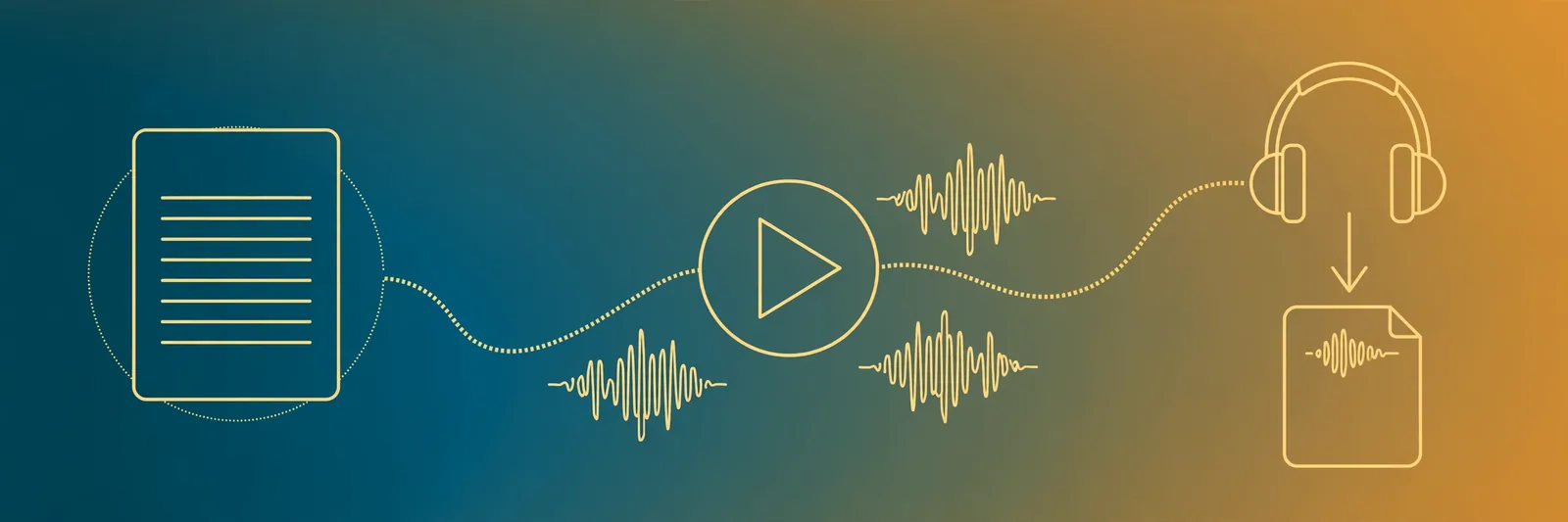
Let's walk through it with TextToSpeechH, since it skips the usual limits (it's free, no account, and handles up to 10,000 words per session):
- Open the tool. It loads in your browser — nothing to install on Windows, Mac, or your phone.
- Paste your script into the text box (up to 10,000 words), or drag in a PDF, DOCX, or TXT file to auto-extract the text.
- Choose a voice. Preview a few — pick across 12+ languages including English, Hindi, Urdu, Spanish, French, Italian, and German.
- Set speed and tone. Start at 1.0x speed and the default tone; tweak after your first listen.
- Generate and listen. Long scripts are chunked automatically so nothing gets cut off.
- Download the MP3. The file comes out with a clean timestamped name, ready for your editor.
That MP3 is yours — free for commercial use, no watermark, no attribution required. Use it in YouTube videos, podcasts, audiobooks, ads, or client work.
Three quick use cases worth trying
- Proofread your own writing. Listening to your text read aloud catches awkward sentences your eyes skip. Writers have used this trick for decades; TTS just automates the reading part.
- Turn study notes into audio. Paste your revision notes, generate the MP3, and review on your commute. Some students learn faster by ear — worth one experiment.
- Voice your videos without a microphone. Paste your script, pick a voice, download the voiceover, drop it into your edit. Full walkthrough in our YouTube voiceover guide.
The bottom line: online text to speech means no downloads, no installs — paste, pick a voice, download the MP3. Judge tools on real limits (words per session, MP3 download, no sign-up wall), not marketing claims. Try it free — first audio in under a minute.
Frequently Asked Questions
Is online text to speech free?
Often, yes — TextToSpeechH is 100% free with no sign-up. Many other free tools exist but cap characters, watermark exports, or require an account first. Check the actual limits before planning a project around one.
Do I need to download software?
No. Online TTS runs entirely in your browser on Windows, Mac, Chromebooks, and phones. If a free online tool demands an install, it is not really an online tool.
Can I use the audio in my YouTube videos?
With tools that grant commercial rights — TextToSpeechH allows commercial use including YouTube monetization with no watermark or attribution. Always verify the current terms of whichever tool you use.
How many words can I convert at once?
It varies wildly: some free tools cap you at a few hundred characters per paste. TextToSpeechH handles up to 10,000 words per session — roughly an hour of audio.
Is my text private?
Browser-based voices keep text on your device; server-based neural voices send it for processing. Do not paste passwords, private documents, or anything sensitive into any online tool.
Sources & References
- W3C Web Accessibility Initiative — "Audio Content & Video Content" text-to-speech guidance: www.w3.org/WAI/media/av/av-content/
- Wikipedia — Speech Synthesis & Speech Recognition: en.wikipedia.org/wiki/Speech_synthesis
- van den Oord et al. — WaveNet: A Generative Model for Raw Audio: arxiv.org/abs/1609.03499
- Shen et al. — Natural TTS Synthesis by Conditioning WaveNet on Mel Spectrogram Predictions (Tacotron 2): arxiv.org/abs/1712.05884
- Google — Neural Text-to-Speech & AI Overview documentation: cloud.google.com/text-to-speech