
Quick Answer: How Do You Get a PDF Read Aloud?
You probably already own everything you need. If the PDF is open on your computer, Microsoft Edge and Adobe Acrobat Reader both read PDFs aloud for free, with nothing to install. On a phone, iPhone and Android both have read-aloud built in. And if you want a natural-sounding voice you can save as an MP3 and listen to in the car, convert the PDF's text with a text to speech tool (Method 6). The one case where every method fails is a scanned PDF — a photo of text, not real text — and there is a fix for that too, at the end.
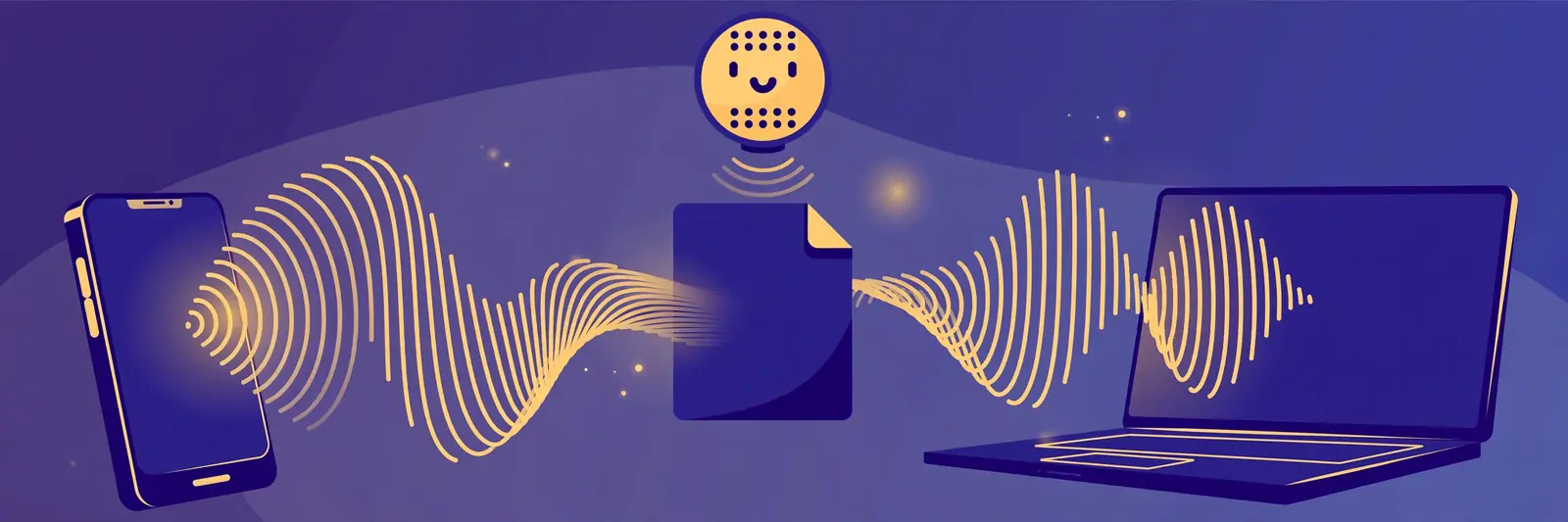
Method 1: Microsoft Edge (Windows and Mac) — best for most people
Edge is the easiest starting point because it is already on most computers and its Read Aloud voices are decent.
- Right-click the PDF file and open it with Microsoft Edge (or drag the file into an Edge window).
- Right-click anywhere on the page and choose Read aloud — or press Ctrl + Shift + U.
- Use the Voice options button at the top to change the voice and slow it down or speed it up.
Honest limits: Edge has to stay open while it reads, and it reads the whole document in order, including headers and page numbers, which can get annoying in reports with busy page furniture. For a quick listen at your desk, though, nothing beats it for zero setup.
Method 2: Adobe Acrobat Reader (free version) — best for studying
If you read PDFs to study, Acrobat's built-in reader keeps you in the same app as your highlights and comments.
- Open the PDF in Acrobat Reader.
- Go to View → Read Out Loud → Activate Read Out Loud.
- Choose Read This Page Only or Read to End of Document from the same menu. To hear one section, select the text first, then use Read Out Loud again.
Honest limits: Acrobat does not bring its own voices — it borrows your operating system's voices, so quality depends entirely on your machine. On Windows the default voices are serviceable; on older systems they can sound flat. It is a study tool, not a listening experience.
Method 3: iPhone and iPad — best on Apple mobile
Your iPhone can read any PDF on screen, once you switch the feature on. You only do this once:
- Go to Settings → Accessibility → Spoken Content and turn on Speak Screen.
- Open the PDF in the Files app, Apple Books, or your mail.
- Swipe down with two fingers from the top of the screen. A small player appears and reading starts.
Use Speak Selection (same settings screen) if you only want one paragraph read — select the text and tap Speak. Honest limit: Speak Screen reads whatever is on screen page by page, so on a badly formatted PDF it can jump around columns. For clean, single-column documents it works well.
Method 4: Android — best with Google Play Books
The smoothest free route on Android is Play Books, because it treats your PDF like a real book:
- Open the Google Play Books app, go to Library → Uploads (or share the PDF to Play Books from your files).
- Open the uploaded PDF, tap the menu (⋮), and choose Read aloud.
Playback continues with the screen off, which makes this the best free option for listening on a walk or a commute. Honest limit: uploading a work or personal document to any cloud app is a privacy choice — for a sensitive contract or medical report, use one of the offline methods above instead.
Method 5: Mac — Preview and system speech
Macs can do this too, though Apple hides it in an odd place:
- Open the PDF in Preview.
- Select the text you want to hear (or press Cmd + A for everything).
- Right-click → Speech → Start Speaking.
It works, but it is the weakest of the five built-ins: no pause button worth the name, and starting mid-document is fiddly. If you read long PDFs on a Mac regularly, Method 1 (Edge is available for Mac) or Method 6 below is a better daily habit.
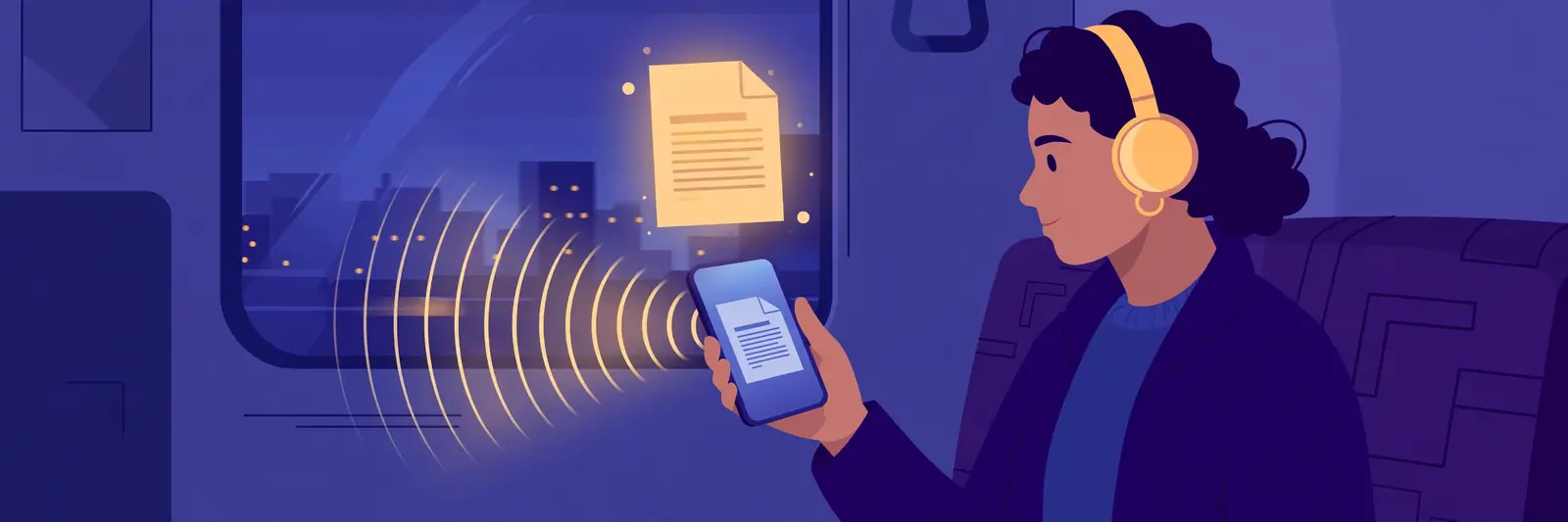
Method 6: Turn the PDF into an MP3 — best voice, listen anywhere
All five methods above share one weakness: the voices are the ones your device came with, and you have to stay inside that app. If you want a natural voice, a file you own, and playback anywhere — car, gym, a phone with the screen off — convert the text instead:
- Open the PDF and copy the text (or the chapter you need).
- Paste it into a text to speech tool and pick a voice and speed you can listen to for an hour, not just a minute.
- Generate and download the MP3. Now it behaves like a podcast episode — any player, any device, offline.
This is also the method that survives a change of device: the MP3 does not care whether you switch from Android to iPhone next year. If you are comparing tools for this, our guide to the best free text to speech tools covers which free tiers let you download the audio file, because not all of them do.
When the PDF stays silent: it is probably scanned
If every method reads nothing — or reads random letters — your PDF is almost certainly a scan: each page is a photograph of text, and there is no real text for any reader to read. This is common with old textbooks, office scans and photographed notes.
The fix is OCR (optical character recognition): Acrobat's paid version does it under Scan & OCR, and there are free OCR websites that convert a scanned PDF into a text PDF. Run it through OCR once, save the new file, and every method above starts working. One warning from experience: OCR of two-column academic papers often scrambles the reading order, so listen to the first page before converting a 200-page thesis.
Two more quick fixes:
- Wrong language or strange accent: the voice follows your device's language settings, not the document's. Change the voice (Edge's Voice options, or iPhone's Spoken Content → Voices) to match the document's language.
- Very long files: split by chapter. A 300-page PDF converted in one go is hard to navigate in any player; chapter-sized files are how audiobook listeners actually do it. Students reading long material on school devices may also like our text to speech guide for Chromebooks.
Which method should you pick?
- Quick listen at your desk: Edge Read Aloud (Method 1)
- Studying with notes and highlights: Acrobat Read Out Loud (Method 2)
- iPhone, around the house: Speak Screen (Method 3)
- Android, walking or commuting: Play Books (Method 4)
- Natural voice, saved forever, any device: Convert to MP3 (Method 6)
The short version: For a quick listen, Edge or Acrobat will read your PDF right now, free. On your phone, Speak Screen (iPhone) or Play Books (Android) does the same job. And when you want a voice worth listening to for an hour — and a file you can keep — copy the text into a converter and take the MP3 with you. If nothing reads at all, the PDF is a scan: OCR it first, then every method works.
By Mauhnish — I build TextToSpeechH and write these guides from what actually works when you test it, not from feature lists. If a step above didn't work the way I described, the tool changed — tell me and I'll fix the guide.
Frequently Asked Questions
Is it free to get a PDF read aloud?
Yes. Edge, Acrobat Reader, iPhone Speak Screen, Android Play Books and Mac system speech are all free and built into software you likely already have. Converting text to an MP3 is also free on many tools' free tiers, though some limit downloads.
Why does my PDF stay silent in every app?
Almost always because it is a scanned PDF — images of pages instead of real text. Run it through OCR to create a text version, then read the new file aloud.
Can I save a PDF as an audio file (MP3)?
Not with the built-in readers — they only play the sound live. To get an MP3, copy the PDF's text into a text to speech converter and download the generated audio.
What is the best way to listen to a PDF while driving?
Convert it to an MP3 first, or use Play Books on Android with the screen off. Do not use methods that need the app open on screen — apart from being unsafe, most pause when the phone locks.
Can a PDF be read aloud in other languages, like Spanish or Hindi?
Yes — the readers use whatever voices your device has. Download or select a voice in the document's language; a Hindi or Spanish document read by an English voice is close to unintelligible.
Sources & References
- W3C Web Accessibility Initiative — "Audio Content & Video Content" text-to-speech guidance: www.w3.org/WAI/media/av/av-content/
- Wikipedia — Speech Synthesis & Speech Recognition: en.wikipedia.org/wiki/Speech_synthesis
- van den Oord et al. — WaveNet: A Generative Model for Raw Audio: arxiv.org/abs/1609.03499
- Shen et al. — Natural TTS Synthesis by Conditioning WaveNet on Mel Spectrogram Predictions (Tacotron 2): arxiv.org/abs/1712.05884
- Google — Neural Text-to-Speech & AI Overview documentation: cloud.google.com/text-to-speech