
Quick Answer: How Do I Add Text to Speech in Canva?
Canva has no built-in TTS — you either use a third-party app from Canva's marketplace (basic voices) or generate the MP3 externally and upload it (far better quality). The free upgrade path: generate your voiceover with TextToSpeechH (10,000 words free, no signup), upload the MP3 to Canva, drag it onto your timeline.
If you've searched Canva for a text-to-speech button, you've already discovered the truth: there isn't one. Canva is a design tool, not an audio tool — voiceovers arrive through workarounds, and the quality varies wildly depending on which workaround you pick.
This guide covers both routes honestly: the built-in app path (fast, mediocre voices) and the external MP3 path (two extra minutes, dramatically better voices). For anything you'll publish, the second route wins.
Route 1: Canva apps (fast, basic voices)
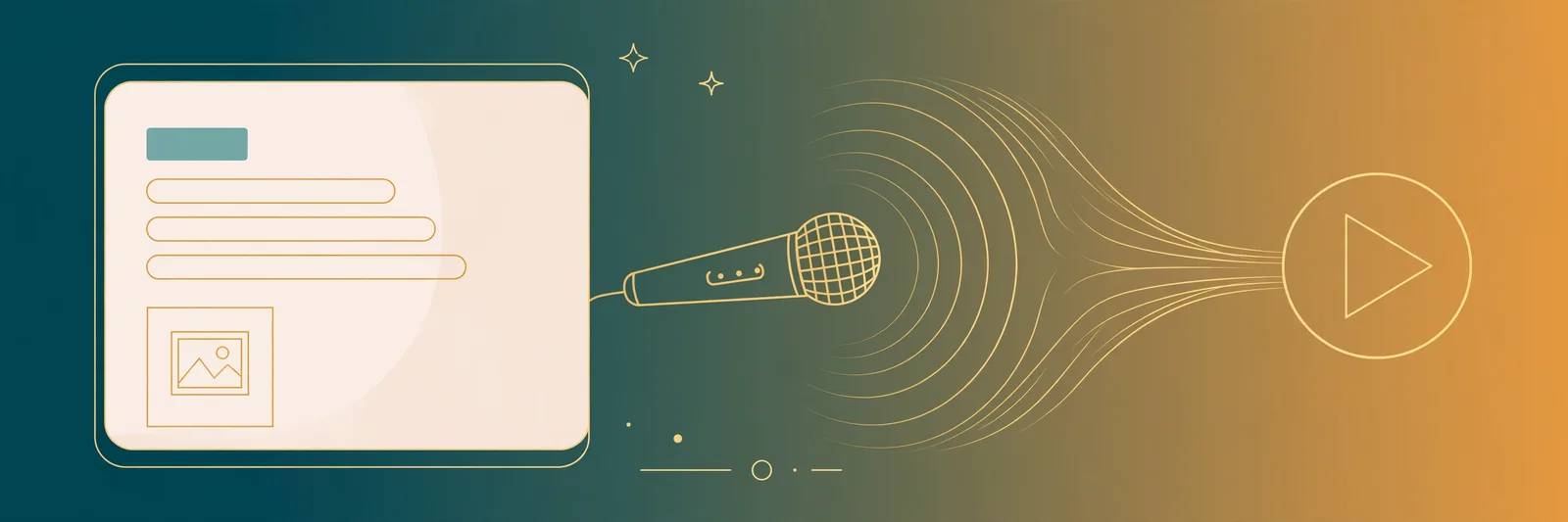
In the Canva editor, open Apps in the left sidebar and search "text to speech." You'll find third-party TTS apps you can connect. They work inside Canva — type text, generate, the audio lands on your design.
The honest caveat: these apps use lightweight system voices to stay fast inside Canva. They sound like a GPS from 2015. Fine for an internal draft; not fine for a client video or a YouTube upload.
Route 2: External MP3 upload (free, professional voices)
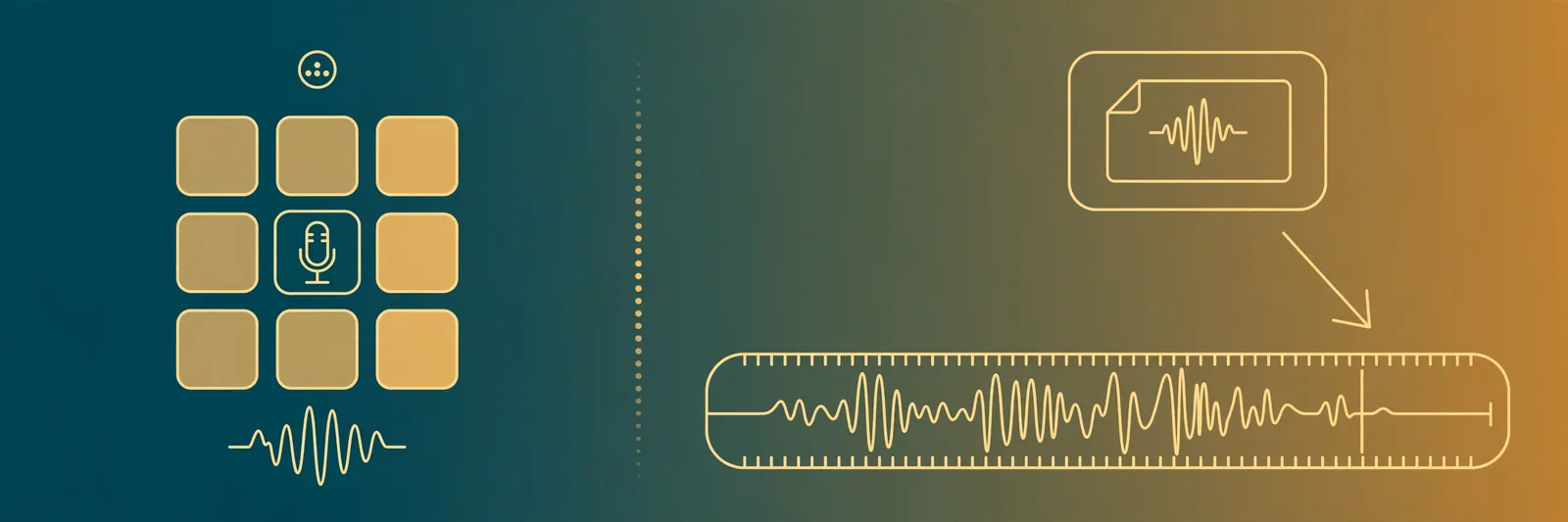
This is what working creators actually do:
- Write your script — keep sentences short; TTS handles punchy copy far better than long paragraphs.
- Generate the MP3 with a free neural TTS tool. TextToSpeechH handles up to 10,000 words per session free, no signup, with MP3 download.
- Upload to Canva: Uploads tab > Upload files > select your MP3.
- Drag onto the timeline and position it under the right scene or slide.
- Trim and sync: split the audio per scene if your video has multiple sections — one MP3 per scene is easier to time than one long file.
Total extra time versus the app route: about two minutes. Quality difference: night and day.
Three tips for voiceovers that don't sound robotic
- Punctuate for pauses. Commas and periods are your directing tools — the voice pauses where you punctuate. Write like you speak.
- One idea per generation. Generate each scene's narration separately. It keeps timing tight and lets you redo one bad line instead of the whole script.
- Preview before you upload. Listen to the full MP3 once before it goes into Canva. Catching a mispronounced brand name now saves a re-export later.
The bottom line: Canva's app-route voices are fine for drafts; published work deserves the MP3 route. Generate free with TextToSpeechH, upload, sync per scene. Two extra minutes, professional result.
Frequently Asked Questions
Does Canva have text to speech built in?
Canva does not have a native TTS feature in the core editor. You add voiceovers via Canva apps (like the text-to-speech apps in the Apps marketplace) or by uploading an MP3 generated elsewhere — the second route gives you far better voices for free.
How do I add a voiceover to Canva for free?
Generate your MP3 with a free TTS tool (TextToSpeechH handles 10,000 words free, no signup), then in Canva go to Uploads > Upload files, drop in the MP3, and drag it onto your design timeline. Sync it with your slides or video scenes.
Can I use AI voices in Canva videos commercially?
Yes, if the voice tool grants commercial rights. TextToSpeechH audio is cleared for commercial use including client work. Always check the terms of whichever TTS tool you use before publishing.
Why does Canva's built-in voice sound robotic?
Third-party TTS apps inside Canva typically use basic system voices to stay lightweight. For natural neural voices, generate the audio externally with a dedicated TTS tool and upload the MP3 — the quality jump is dramatic.
Sources & References
- W3C Web Accessibility Initiative — "Audio Content & Video Content" text-to-speech guidance: www.w3.org/WAI/media/av/av-content/
- Wikipedia — Speech Synthesis & Speech Recognition: en.wikipedia.org/wiki/Speech_synthesis
- van den Oord et al. — WaveNet: A Generative Model for Raw Audio: arxiv.org/abs/1609.03499
- Shen et al. — Natural TTS Synthesis by Conditioning WaveNet on Mel Spectrogram Predictions (Tacotron 2): arxiv.org/abs/1712.05884
- Google — Neural Text-to-Speech & AI Overview documentation: cloud.google.com/text-to-speech