
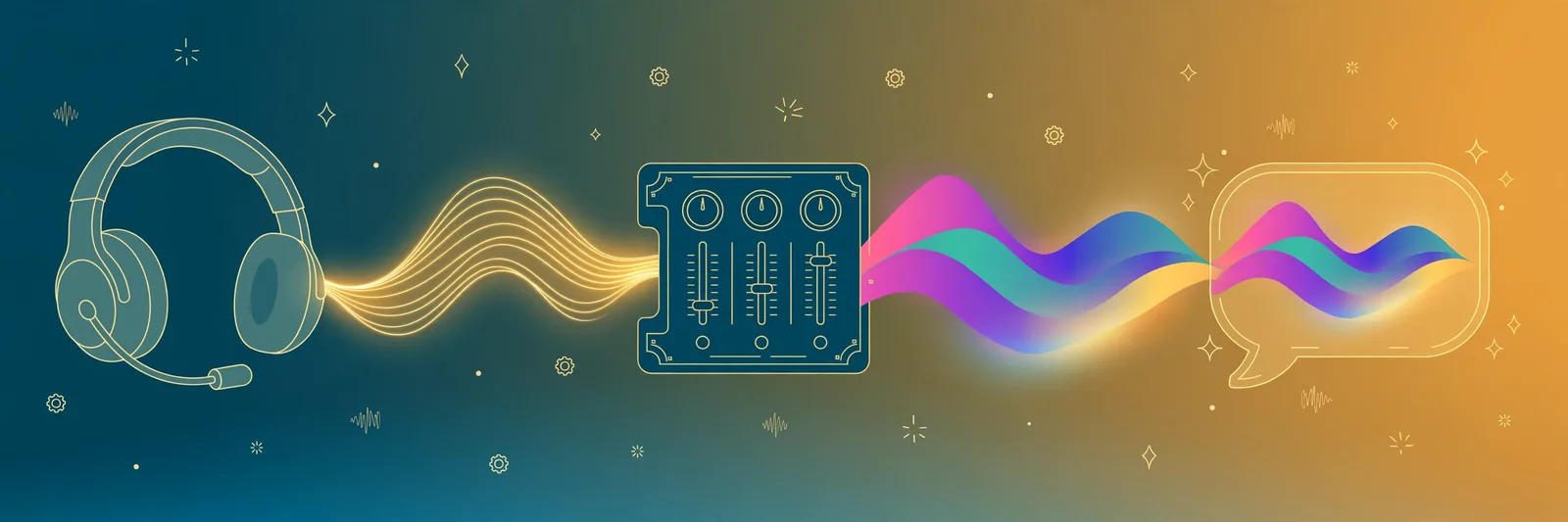
The best voice changer for Discord is Voicemod if you want the easiest setup and the biggest voice library, and Clownfish if you want one that is completely free on Windows. Discord has no built-in voice changer, so every tool here works the same way: it installs a virtual microphone, you pick that microphone inside Discord, and your voice is changed live before anyone hears it.
That one detail — the virtual microphone — is the whole game. Once you understand it, setup takes about three minutes for any of these tools, and most "it doesn't work" problems turn out to be one wrong dropdown in Discord's settings. This guide compares the five changers worth your time, shows the exact setup steps, and is honest about what the free versions actually give you, because "free" in this category usually means "a few voices that change every day."
Quick Answer: The Best Discord Voice Changer
Start with Voicemod's free version: it installs a virtual mic, works on Windows and Mac, and the daily rotating voices are enough to test the idea tonight. If you refuse to pay anything, ever, and you are on Windows, install Clownfish instead — it is fully free, just basic. The step-by-step Discord setup is in the middle of this guide.
Quick picks: the 5 changers that work with Discord
| Tool | Best for | Platform | What "free" really means |
|---|---|---|---|
| Voicemod | Best overall — biggest library, easiest setup | Windows, Mac | A handful of voices that rotate daily, 1 soundboard; Pro unlocks the full library and Voicelab |
| Clownfish | Best fully free option | Windows only | Everything is free; voices are simple presets, not AI |
| Voice.ai | Most realistic AI voices | Windows | Free to try with limits; the convincing voices push you to paid credits/plans |
| FineVoice | Simple AI changer + recorder in one | Windows | Limited free usage; full AI voice library is paid |
| MorphVOX Junior | Lightweight classic effects | Windows, Mac | Junior is free with a small voice set; MorphVOX Pro is the paid full version |
One honest caveat before the details: every "AI voice" in this category needs a reasonably modern CPU to run without lag. On an old laptop, the simple preset changers (Clownfish, MorphVOX) will feel instant, while the realistic AI ones can add a delay that your squad will notice in fast games.
Why you need a separate app at all
Discord is huge — more than 200 million people use it every month, according to Discord's own April 2025 announcement — and it packs noise suppression, a soundboard for playing clips, and plenty of audio settings. What it does not have, anywhere in its settings, is a voice changer: there is no toggle that turns your voice into a robot, a character, or someone else. Discord's audio tools clean up your voice; they do not transform it.
So third-party apps fill the gap with the virtual-microphone trick:
- The changer app takes your real microphone's audio.
- It applies the effect — pitch shift, character voice, AI conversion — in real time.
- It outputs the result as a fake microphone device on your computer.
- Discord (or any game) uses that fake microphone as its input, and hears only the changed voice.
This is also why the same setup works in Zoom, OBS, and in-game voice chat: anything that lets you choose an input device can use a voice changer.
Voicemod — best overall for Discord
Voicemod is the default recommendation for a reason: it is the most polished, the library is large (100+ voices on Pro, including AI character voices), and the soundboard — meme sounds on hotkeys — is half the fun in a Discord call. The free version is a genuine free trial that never expires, but know exactly what it is: a small set of voices that rotates every day, plus one soundboard. The voice you love on Tuesday may be gone on Wednesday unless you pay.
Pro unlocks the full library permanently, unlimited soundboards, and Voicelab, where you build custom voices by stacking effects. If you stream or you are in voice chat every night, Pro earns its money. If you just want to sound like a robot for one game night, the free rotation is fine — do not pay for a joke you will use twice.
Setup is the standard pattern in the walkthrough below: install, pick your real mic and headphones inside Voicemod, turn the Voice Changer switch on, then select the Voicemod virtual device as Discord's input.
Clownfish — best fully free voice changer
Clownfish is the opposite philosophy: completely free, no account, no daily rotation, no upsell wall — and the voices are simple old-school presets (pitch up/down, robot, radio, helium-style effects) rather than AI characters. It installs at the system level on Windows, which means it changes your voice in Discord and every other app automatically once you set it as the input. There is no Mac version, and the interface looks like it was designed a decade ago, because it was.
Pick Clownfish if your rule is "zero rupees, zero dollars, forever" and preset voices are enough. Pick anything else on this list if you want to sound like an actual different person.
Voice.ai and FineVoice — best realistic AI voices
These two chase the thing presets cannot do: turning your voice into a believable different voice — a character, a public-figure-style voice, a different age or gender — while you talk. When it works, it is startling. The honest costs:
- Compute cost. Real-time AI conversion is heavy. Expect noticeable CPU use and a small delay; competitive FPS players usually feel it.
- Money cost. Both let you try free with limits, but the voices people actually want sit behind paid plans or credits. Budget for paid if realistic AI is your goal.
- Language cost. These models are trained mainly on English voices and sound best in English.
If you host a character stream or a roleplay server, this is your category. If you just want to troll your friends for an evening, it is overkill — Voicemod's free rotation does that job.
How to set up a voice changer in Discord (step by step)
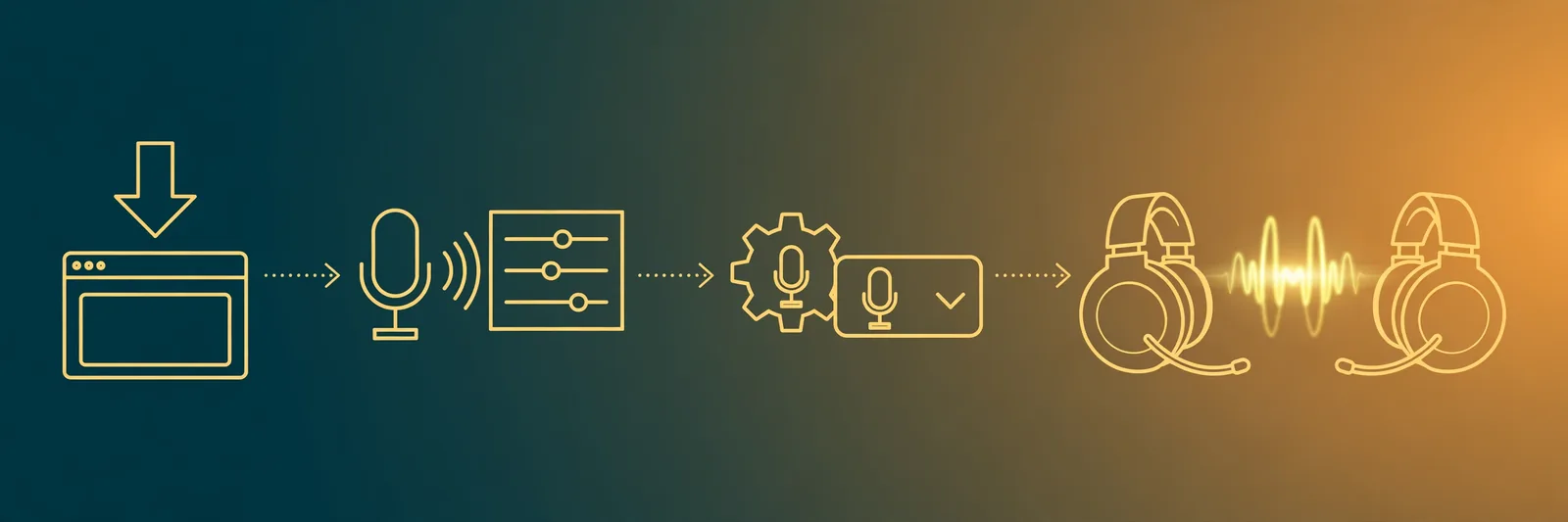
This walkthrough uses Voicemod, but steps 3–5 are identical for every tool — only the virtual device's name changes.
- Install the changer and open it. Inside the app, select your real microphone as input and your headphones as output. Most apps have a "hear myself" test — use it, and confirm the effect sounds right inside the app before touching Discord.
- Choose a voice and leave the app running. The virtual microphone only exists while the changer app is open. Closing the app kills the device.
- Open Discord → Settings (gear icon) → Voice & Video. Under Input Device, select the virtual microphone — for Voicemod it appears as "Microphone (Voicemod Virtual Audio Device)"; Clownfish appears as its own system device.
- Fix the double-processing problem. Discord's own noise suppression and echo cancellation are designed for normal voices and can chop up robot and AI voices. If your changed voice sounds broken, set Noise Suppression to "None" and turn Echo Cancellation off, then test again. This one step fixes most "my voice changer sounds terrible on Discord" complaints.
- Test in a private call, not a live match. Use Discord's "Let's Check" mic test on the same settings page, then a quick call with a friend. Check two things: the effect is on, and there is no echo of your real voice leaking through (that happens when your real mic is still selected somewhere, or your speakers bleed into the mic — use headphones).
- Match your push-to-talk. If you use Push to Talk, nothing changes — the changer processes your voice before Discord ever hears it. If you use Voice Activity, do the mic test again with the effect on, because a deep or quiet effect voice may not trip the same sensitivity threshold as your real voice.
Total time once you know the dropdown: about three minutes. The only step people skip is step 4, and it is the one that matters most after the input device itself.
Free vs paid: what you actually lose on free tiers
- Rotating voices (Voicemod free). You lose permanence, not quality — today's free voices are real library voices, they just may not be there tomorrow.
- Preset-only voices (Clownfish, MorphVOX Junior). You lose realism. Pitch and effect presets are obviously effects; nobody will mistake them for a different human.
- Trial limits (Voice.ai, FineVoice). You lose time and selection — enough to know the tech works, not enough to build a streaming persona on.
- Soundboard limits. Free tiers typically give you one soundboard or a few slots. If your whole bit is sound effects, that limit bites faster than the voice limit.
The pattern to remember: free tiers in this category are for testing and jokes. The moment a specific voice becomes part of your channel or your regular game nights, you are in paid territory — except Clownfish, which stays free by staying simple.
A different job: text read aloud, or your clips edited later
Two neighbouring needs get confused with voice changers, so quickly: if you want text read aloud in a Discord channel (announcements, bot narration), that is text-to-speech, not voice changing — our Discord text to speech guide covers that setup, and you can generate the audio free on TextToSpeechH and play it into the channel. And if you want the wider landscape beyond Discord, our roundup of the best AI voice changers compares these tools for streaming, pranks, and content work generally.
The bottom line: For Discord, the choice is simpler than the marketing suggests. You need a virtual microphone, one dropdown changed in Discord's Voice & Video settings, and five minutes. Voicemod is the best all-round pick and its free tier is enough for most people; Clownfish is the truly-free Windows answer; Voice.ai and FineVoice are where you go when the voice has to sound like a real, different person and you accept the paid plan and the CPU cost that come with it. Set the noise suppression to "None," test with a friend before the match, and you are done.
By Mauhnish — I build TextToSpeechH and write these guides from what actually works when you test it, not from feature lists. If a step above didn't work the way I described, the tool changed — tell me and I'll fix the guide.
Frequently Asked Questions
Does Discord have a built-in voice changer?
No. Discord offers noise suppression, echo cancellation, and a soundboard for playing audio clips, but nothing that transforms your voice into a character or a different person. For that you need a separate app — Voicemod, Clownfish, or a similar tool — which installs a virtual microphone that Discord then uses as its input device.
What is the best free voice changer for Discord?
For most people, Voicemod's free version: it works on Windows and Mac and the voices are high quality, but the free selection rotates daily, so you cannot keep one voice permanently. If 'free' must mean free forever with nothing locked, Clownfish on Windows is the honest answer — simpler preset voices, no account, no paid tier at all.
Will a voice changer get me banned on Discord?
Using a voice changer is not against Discord's rules, and people run them in game and community servers every day. What breaks the rules is behaviour: impersonating to deceive people, harassment, or evading a server ban with a disguised voice. Change your voice for fun and you are fine; use it to trick people and the rules apply to you, changer or not.
Do voice changers work on Discord mobile?
Not the way they do on desktop. Android and iOS do not let apps insert a virtual microphone into another app's call, so changers like Voicemod and Clownfish cannot plug into Discord's mobile app. On a phone, your only options are record-and-send effects in separate clip apps — fine for voice messages, not a live changed voice in a call.
Sources & References
- W3C Web Accessibility Initiative — "Audio Content & Video Content" text-to-speech guidance: www.w3.org/WAI/media/av/av-content/
- Wikipedia — Speech Synthesis & Speech Recognition: en.wikipedia.org/wiki/Speech_synthesis
- van den Oord et al. — WaveNet: A Generative Model for Raw Audio: arxiv.org/abs/1609.03499
- Shen et al. — Natural TTS Synthesis by Conditioning WaveNet on Mel Spectrogram Predictions (Tacotron 2): arxiv.org/abs/1712.05884
- Google — Neural Text-to-Speech & AI Overview documentation: cloud.google.com/text-to-speech